Split View
View ▾ ▸ Layout puts the mesh in one, two or four viewports at once. Every pane draws the same mesh through its own camera, field settings and clip plane, so you can watch the front and the top at the same time, keep a whole-model overview beside a zoomed-in detail, or put two different result variables side by side.
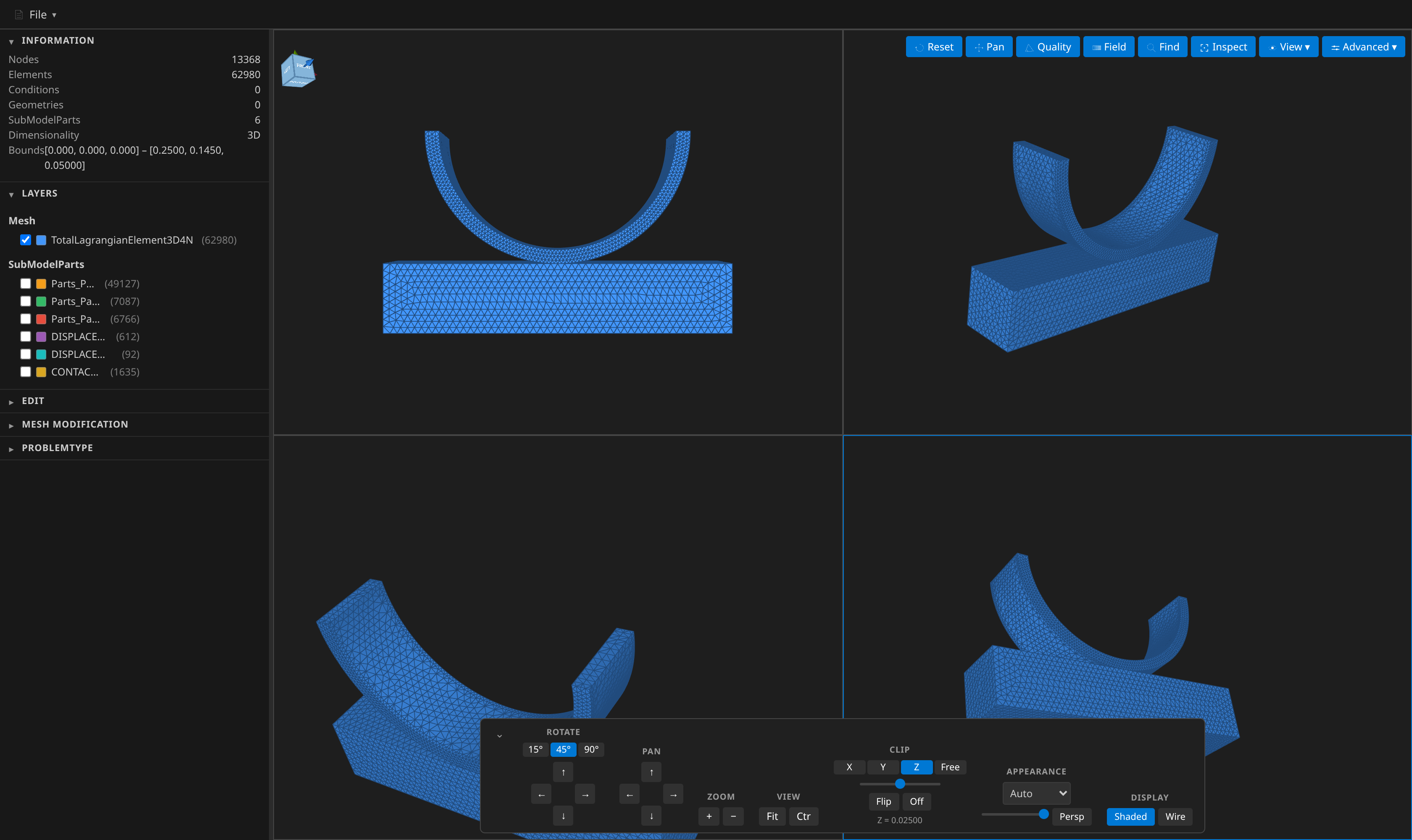
| Layout | What you get |
|---|---|
| Single | One viewport — the default. |
| Side by side | Two panes, split left/right. |
| Stacked | Two panes, split top/bottom. |
| Quad | Four panes. |
Which pane am I driving?
Orbit, pan and zoom always apply to the pane under the pointer — just move the mouse into a pane and drag.
Everything else that acts on one pane without you pointing at it — Reset, Frame on a layer or a table row, the navigation dock's orbit and fit buttons, the 1–6 and i view shortcuts, camera bookmarks, and now the Field panel and the Clip controls — acts on the pane you last pressed in. That pane is drawn with a highlighted border so there is no guessing, and the orientation cube turns to match it.
Click inside a pane to point the panels at it. The focus is a latch, not a hover: it survives moving the mouse off the canvas to reach the panel, which is the whole point.
A different field in each pane
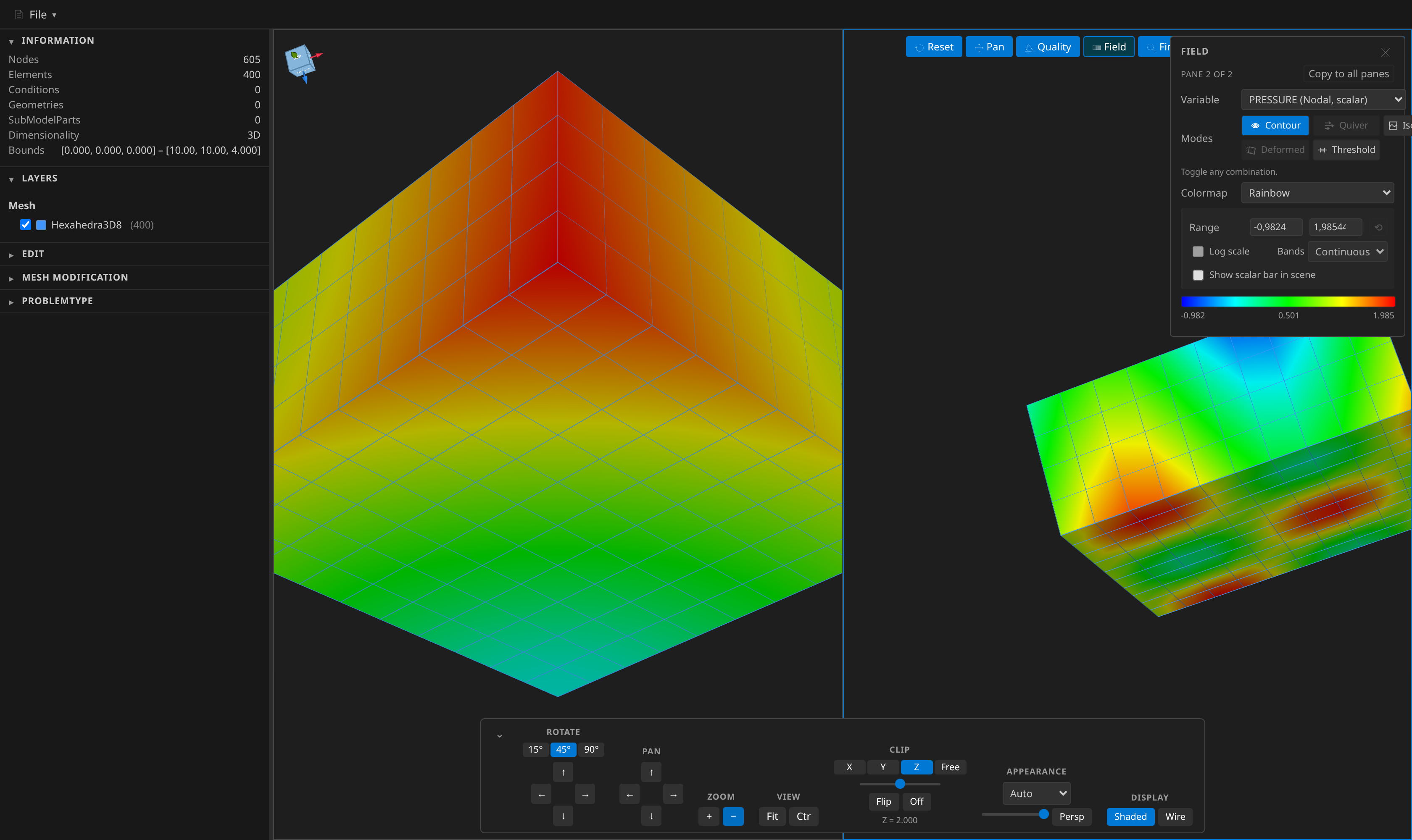
The Field panel edits the focused pane, so each pane carries its own variable, colormap, component, colour range, log/band settings, isosurface values, threshold window and deformation. Click into a pane, pick what it should show, click into the next one and pick something else.
The panel says which pane it is editing (Pane 2 of 4) and offers Copy to all panes when you want them to agree again. A new pane is seeded from the pane you split out of, exactly as its camera is, and then diverges.
The clip plane is per-pane too — its own axis (or free normal), position and flip — so a clipped section can sit beside the whole model. The Off/On toggle, the slider and the axis buttons always describe the focused pane; move the focus and they follow.
Hiding a layer in some panes only
In a split layout every layer row in the outline has a panes button (the grid icon, shown when you hover the row). It opens one checkbox per pane — untick Pane 2 and the layer is gone from that pane while every other pane keeps drawing it. Use it to put the whole model beside the same model without its skin, or a SubModelPart highlighted in one view only.
The checkbox at the start of the row is still the master switch: unticking it hides the layer in every pane, and ticking it back restores exactly the panes you had chosen. A layer hidden in some pane shows a small badge with the panes it is drawn in (for example 1·3), because the hover buttons are not visible at rest.
Switching layouts reseeds every pane from the pane you were working in, exactly as its camera and field settings are: if that pane showed the layer, every new pane shows it, and you then diverge again. The choice is saved with the other view settings and restored when you reopen the mesh.
What is shared, and what is not
Per pane: the camera, the field settings and the clip plane, and — through the panes button above — whether each layer is drawn in it.
Shared: which layers exist and their colours and opacity, the display mode, the selection, and the analysis overlays (mesh size, spheres, beams, face normals). Those are edited from one outline tree and one panel apiece, and the demand was for different fields and views, not different layer sets. A layer's visibility has one master switch with an optional per-pane filter on top of it.
The geometry is shared too. Each pane wraps the same mesh in its own view of it rather than a copy, so switching to a four-pane layout is instant even on a large model. The one exception is Compare in split: one pane can hold a second, read-only mesh file next to the primary one, coloured by the same field where it has it.
Node IDs are single-pane only
Node ID labels are HTML drawn on top of the canvas, positioned by projecting each node through one camera. In a split there is more than one camera, so the labels would land over the wrong panes — the viewer says so and leaves them off rather than drawing them in the wrong place.
Screenshots
Screenshot export can capture the whole grid or only the focused pane. The whole-layout export keeps each pane in its grid region; focused-pane export crops the active pane and preserves its camera and field styling. A quad layout is a convenient way to get front/top/side/iso into a single image.
The screenshot utility places a matching legend in each pane that has an active field overlay, so panes may use different fields and colormaps. The optional in-scene scalar bar remains visible during normal viewing and is restored after capture.
Under the hood
Panes are not separate canvases or separate documents. They are viewport rectangles on the single render window, each with its own camera. Every layer's geometry is built once and shared; each pane only wraps it in its own actor and mapper, which is what lets a pane carry its own clip plane (a clipping plane is a property of the mapper) without duplicating the mesh. That is why switching layouts is instant and why nothing reloads when you do it.
Record uses the same pane composition. Each pane keeps its initial camera and color range across captured solution steps; the turntable rotates only the focused pane. Review and export use the captured images without changing the live split view.