
Mesh Quality
The Quality toolbar button (or the Compute Mesh Quality command) computes purely geometric quality metrics for the mesh — no boundary conditions or solver required — inspired by Kratos' ComputeMeshQualityProcess.
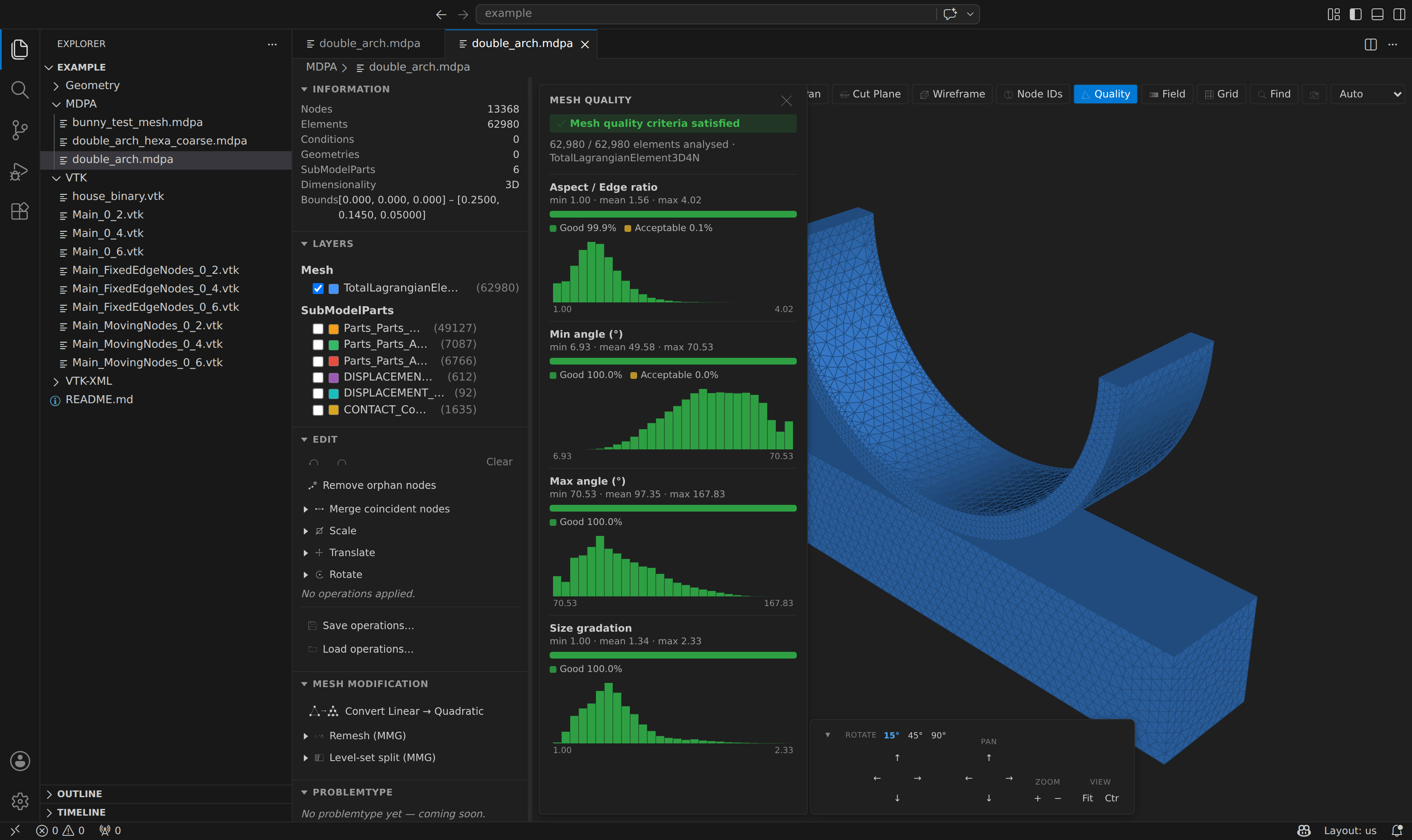
The metrics
Every element is scored on four metrics:
| Metric | Meaning |
|---|---|
| Aspect / edge ratio | Ratio of longest to shortest edge (or the element aspect ratio) — high values flag stretched, sliver elements. |
| Min angle | Smallest dihedral angle (volume cells) or interior corner angle (surface cells). Small angles degrade solver conditioning. |
| Max angle | Largest dihedral / corner angle — values near 180° flag near-degenerate cells. |
| Size gradation | How abruptly element size changes from one node to its neighbours — large jumps mean an uneven mesh. |
The thresholds that separate the bands mirror the Kratos defaults.
Why "purely geometric"?
BC- and flag-dependent checks (dead-tetrahedra, gap / hole detection) are intentionally omitted — they are undefinable for a mesh viewed without its analysis context. Everything reported here depends only on node coordinates and connectivity.
Reading the panel
Each metric is one card containing:
- a min · mean · max line,
- a stacked band bar — the fraction of elements that are Good, Acceptable, Bad, or Unacceptable,
- a histogram of the metric across all elements.
The header shows an overall verdict — Mesh quality criteria satisfied (green) or a warning — and how many elements were analysed. In the example above, 62,980 tetrahedra score 99.9 % Good on aspect ratio, with no bad elements.
Highlighting bad elements
When a metric has elements in the Bad / Unacceptable bands, its card gains a Highlight bad (N) button. Click it to build a red overlay layer of exactly those elements in the 3D view, and Frame to zoom to them — so you can find and inspect problem cells directly. Click again (or Frame on another metric) to move the highlight; closing the panel clears it.
Export
Export CSV writes one row per metric — aggregates, band counts and shares, thresholds, and the bad-element ids — to a .csv file. Id lists over 100 arrive truncated with a …(+N more) trailer; the counts are whole.