
Batch Transform
Kratos Mesh: Batch Transform… applies one operation recipe to many mesh files — the same smoothing pass over every step of a series, the same cleanup over a folder of parts — without opening each file and pressing Apply. It is the viewer counterpart of the mesh_batch_transform MCP tool, over the same pure core and the same load/apply/write pipeline, so a batch and its headless twin produce the same files. Everything interactive goes through native dialogs and one progress notification; a batch never runs in the background while you scrub a timeline.
Running a batch
The command asks four things, in order, and each step can still be cancelled by dismissing its dialog:
- Inputs — one or several mesh files. Any format the preview opens is accepted.
- Recipe — a recipe file (a saved operations recipe, the same
.ops.jsonthe Edit sidebar writes) or a preset (see below). - Output directory — where the results go. Never the inputs' own folder by accident: see the refusal rules below.
- Naming and format — an output name template with
{stem},{recipe},{index}and{ext}placeholders (default{stem}_{recipe}{ext}), defaulting to the preset's own template when the recipe came from one, and either each input's own format or one format for everything.
Before anything is written, the plan is shown as a modal confirmation listing the first ten outputs and the count. Run starts it under a cancellable progress notification; cancelling stops between files and aborts the in-flight file's operation (a running MMG remesh is terminated), leaving that entry pending for the next resume rather than recording a failure.
What the plan refuses
Planning is pure and runs before any mesh is loaded, so a refused batch writes nothing — not even the first file. The whole plan is refused when any output would overwrite an input, when two outputs would collide with each other, or when an output (or a companion file it implies, like an XDMF's .h5) already exists. The one soft case is existing outputs alone: the error names them (up to ten) and offers Overwrite and run. Companion files the plan cannot predict — a .vtm's per-part files, a DOLFIN .xml's per-field siblings — are reported as plan warnings rather than guessed at.
Resume
Every run writes <outputDir>/kkss-batch.json, a manifest of one entry per file with its status (pending, done, failed, skipped), the input's size-and-timestamp when it was processed, and its export report. Starting another batch into the same directory offers Resume previous batch: files already done with an unchanged input are skipped, a file whose input changed since is redone, and a cancelled or failed entry is retried. The manifest is what makes a hundred-file batch survivable — close the window halfway and the next run picks up where it stopped.
Recipe presets
A preset is a named op list plus batch defaults (naming, outputExt, overwrite) stored as one JSON file per preset, so a preset is reviewable, diffable and shareable — and because the on-disk shape reuses the recipe operations key, a preset file also reads as an ordinary operations recipe:
{
  "version": 1,
  "name": "smooth-and-clean",
  "description": "Taubin smooth, then drop orphan nodes.",
  "naming": "{stem}_{recipe}{ext}",
  "operations": [
    { "op": "smooth", "method": "taubin", "iterations": 20 },
    { "op": "removeOrphanNodes" }
  ]
}
Presets live in .kratos/recipes/ under each workspace folder (absolute paths allowed), with more directories added through the kratos.recipes.extraPaths setting. A malformed file never breaks discovery: it is skipped with a warning naming the file and the reason, unknown operations are dropped with a warning, and a preset with no usable name falls back to its file name. When several directories hold the same name, the last directory searched wins on apply while discovery still lists both. Headlessly, mesh_batch_transform takes recipePreset plus recipePresetDirs with the same last-match-wins resolution. A queue built in the viewer can be saved with Save queue… (a .ops.json recipe a batch accepts directly, or Load into queue… to append one back) — and because a preset file reuses the recipe operations key, the queue, the recipe file and the preset share the same op-list shape rather than three formats.
Queuing steps by hand
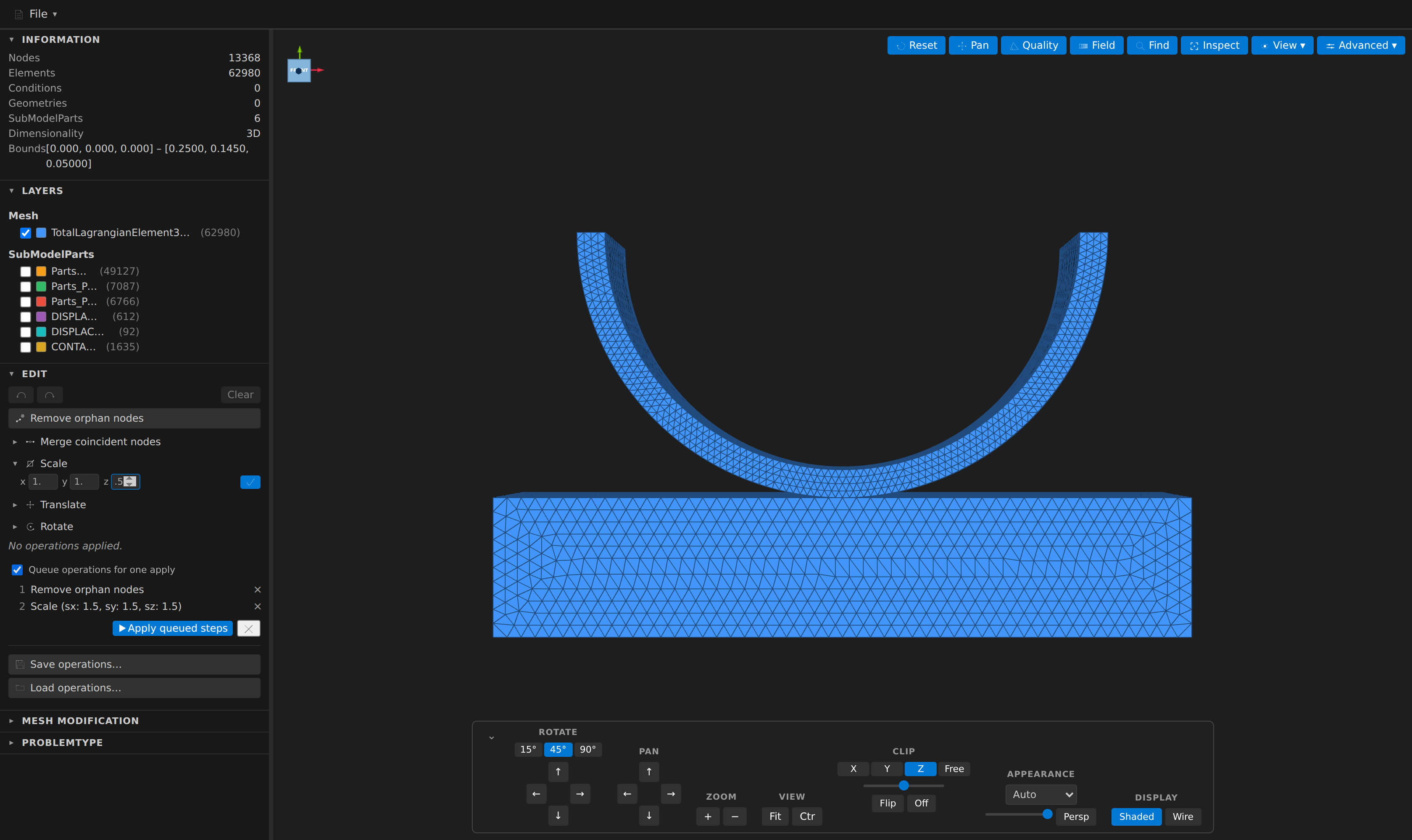
The Edit sidebar's Queue operations for one apply checkbox stages operations from any sidebar form into one list instead of applying each immediately: each still lands as its own undoable step, but one click of Apply queued steps runs them all. Queued steps are reorderable (↑/↓ per row) and editable through an inline JSON editor that reports errors inline rather than applying something half-parsed. The screenshot above shows the pattern: two staged steps, the apply button enabled. Save queue… writes the staged steps as a recipe file a batch accepts directly, so a hand-tuned queue becomes a batch recipe by saving it.