Assistant extensions
The AI assistant (Getting Started ▸ AI assistant) works through four built-in tool servers. Three things let you extend it without widening what it may do on its own:
- the MCP manager adds your own tool servers (and a project folder's) — every tool of a server you add asks for approval until you decide otherwise;
- standing instructions, skills and prompt templates give it your own guidance as plain text files;
- lifecycle hooks run your own commands around its tool calls and messages, so you can write a rule of your own — a hook can only refuse or ask, never approve.
All three live in one panel — the server button in the chat header — and can come from a project folder you trust (Project folders).
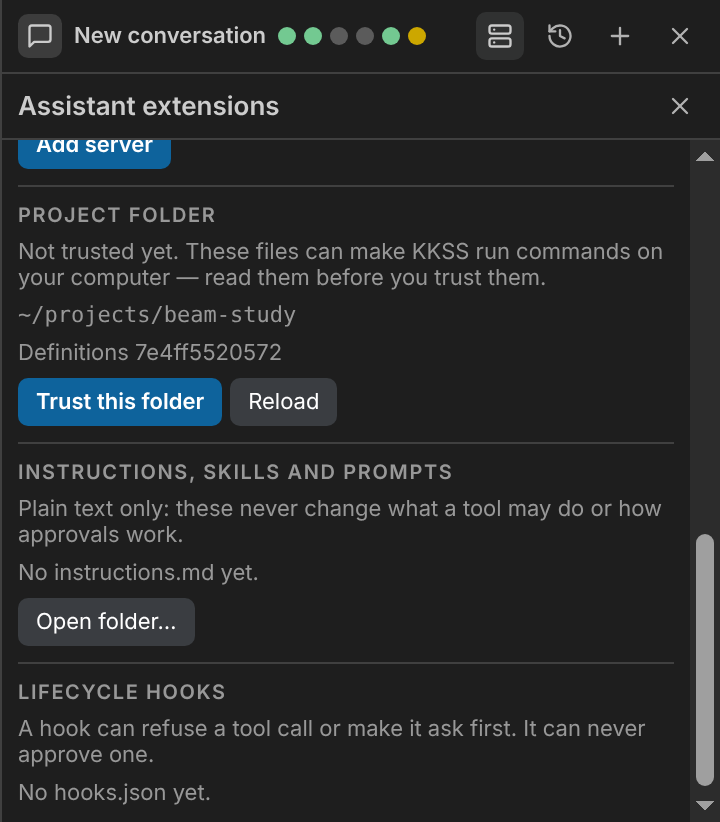
Open it with the server button in the chat header (next to the history button), or Settings ▸ LLM Assistant ▸ MCP Servers ▸ Open manager…. (The panel is titled Assistant extensions.) The coloured dots in the header are the same servers: green = ready, red = unavailable, yellow = a project server waiting for your trust, grey = starting or disabled.
What the manager shows
Every server is a row: its status, tool count, the last error, and what it runs. Built-in servers (CAD, mesh, Kratos, PDF) are managed by KKSS: you can restart them and look at their tools, nothing else. Servers you add are marked yours; servers from a project folder are marked project.
| Control | What it does |
|---|---|
| Restart | Reconnects the server now. A server that is disabled or waiting for trust stays that way. |
| Disable / Enable | Stops or starts one of your servers without forgetting it. |
| Edit / Remove | Changes or forgets one of your servers (removing asks for a second click, and deletes its stored secrets). |
| Tools | Lists the server's tools and lets you mark each one (below). |
Adding a server
Add server opens a form with two kinds of server:
- Local command — a program KKSS starts and talks to over its standard input and output. Give the command and its arguments (spaces separate them, quotes group). The command is run directly, not through a shell, so there is no expansion or redirection. It receives only the basic environment (
PATH,HOMEand the like) plus the variables you list. - HTTP URL — a server that is already running, reached over MCP's streamable HTTP transport. A bearer token is optional and is only ever sent over
https, or to this computer (localhost,127.0.0.1,::1); KKSS refuses to send one over plainhttpto anyone else, and never follows a redirect with it.
The Id is lowercase letters, digits and hyphens (up to 32, starting with a letter). It becomes the prefix of every tool the server offers — a server acme offering lookup is acme__lookup — which is also why cad, mesh, kratos, pdf, app and mcp are reserved: they name the built-in tool families, and a look-alike must never inherit their approval rules.
Environment variable values and bearer tokens are stored encrypted with the OS keychain, like the LLM API key, and are never shown again — the form only shows which names are stored. Leave a value blank when editing to keep it.
Telling KKSS which tools are safe
A tool you have not marked asks every time, exactly like a tool KKSS has no rule for. Open Tools and choose, per tool:
- Ask each time (the default),
- Read-only — runs without asking, or
- Changes things — asks.
The mark is your decision. KKSS never infers it from a tool's name or from what the server says about itself (a server can claim anything). A mark applies to the exact command or URL it was made for: if you edit what the server launches, its marks are cleared, so a swapped program does not inherit "read-only". Only tools marked read-only run unprompted; the Always allow in this conversation button on a prompt still works as it does for any tool.
Tools of servers you add are never reachable through the external MCP endpoint unless Settings ▸ MCP Server ▸ Allowed Tools allows them — a client on the other end has nobody to ask, so your marks do not widen it. Their resources and prompts are not offered to the assistant at all in this version.
Standing instructions, skills and prompt templates
Three kinds of text you keep in files. None of them can run code, add a tool, or make a tool skip its approval prompt — they only change what the assistant is told or what you type.
They live in your assistant folder, which Settings ▸ LLM Assistant ▸ Instructions, Skills & Prompts Folder ▸ Open folder… (or the button at the bottom of the panel) creates and opens — <your KKSS data folder>/assistant/:
assistant/
  instructions.md                 standing instructions
  skills/<name>/SKILL.md          one folder per skill
  prompts/<name>.md               one file per prompt template
Names are lowercase letters, digits and hyphens (up to 48, starting with a letter). A trusted project folder can hold the same layout under .kkss/assistant/; if a name exists in both places, yours wins.
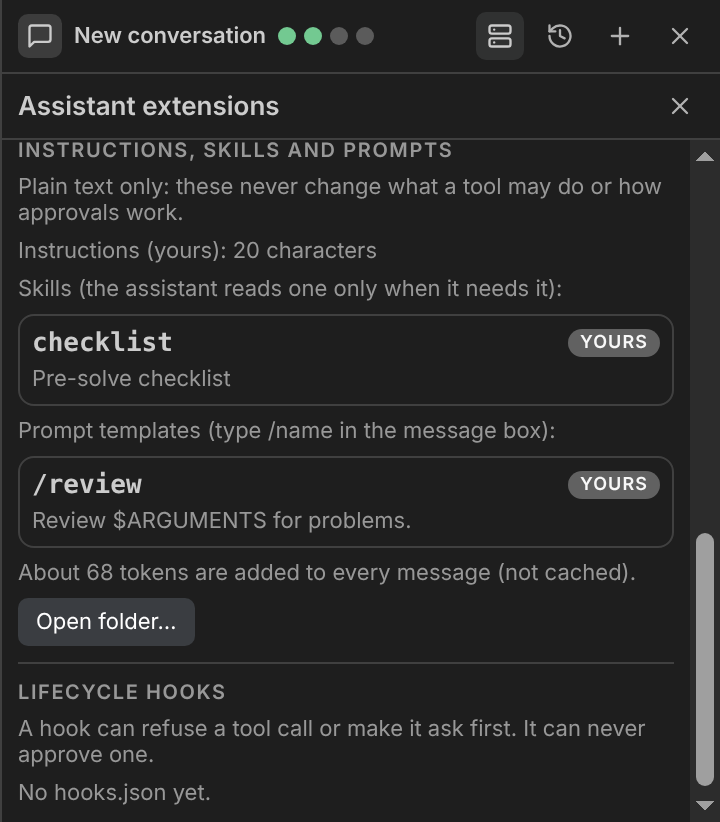
Instructions
instructions.md is guidance that applies to every message — a lab's unit conventions, a checklist to run before every solver launch. It is sent with each message as context, not in the assistant's built-in prompt, and it is limited to the first 6000 characters (the panel says when something is cut). Because it is re-sent with every message and is not cached, the panel — and the tooltip on the token readout in the chat header — shows roughly how many tokens it adds.
The assistant is told to follow instructions as guidance, and that they never change what a tool may do or how approvals work. An instruction such as "always allow writes" does nothing: the approval prompts are decided by KKSS, not by text.
Skills
A skill is a named, longer set of instructions the assistant reads only when it needs it, so an unused skill costs one line of context. skills/<name>/SKILL.md starts with a short header:
---
description: Checks to run before launching a structural solve
---
1. Confirm every boundary condition has a node set.
2. Check the material has a positive density.
3. Run `kratos__validate_project` before `kratos__run_simulation`.
The name is the folder's name (a name: line is optional, and must match if present); description is required and is one line — it is what the assistant sees in its catalog of available skills. When a task matches, it calls the read-only app__skill_load tool with the skill's name and gets the full text; no approval is needed because loading a skill only returns text. Any tool the skill then asks it to use goes through the usual approval gate. The catalog is limited in size; skills beyond the limit are listed in the panel as not announced.
Prompt templates
prompts/<name>.md is a message you send often. Type /name at the start of the message box (the box suggests matching templates as you type) and the message is expanded to the file's text before it is sent; the conversation records the expanded text, so it never changes later. $ARGUMENTS in the template is replaced by whatever follows the name (/review beam.stl); a template without it gets the arguments appended after a blank line. Only a name that is a defined template expands — /tmp/model.stl or an unknown /name is sent exactly as typed — and starting a message with // sends a literal slash.
Turn the whole feature off with Settings ▸ LLM Assistant ▸ Standing Instructions & Skills: nothing is sent and nothing is expanded. The Codex and Claude Code subscription runtimes receive instructions and the skill catalog through the same message context; their own settings, instructions and skill discovery stay switched off.
Lifecycle hooks
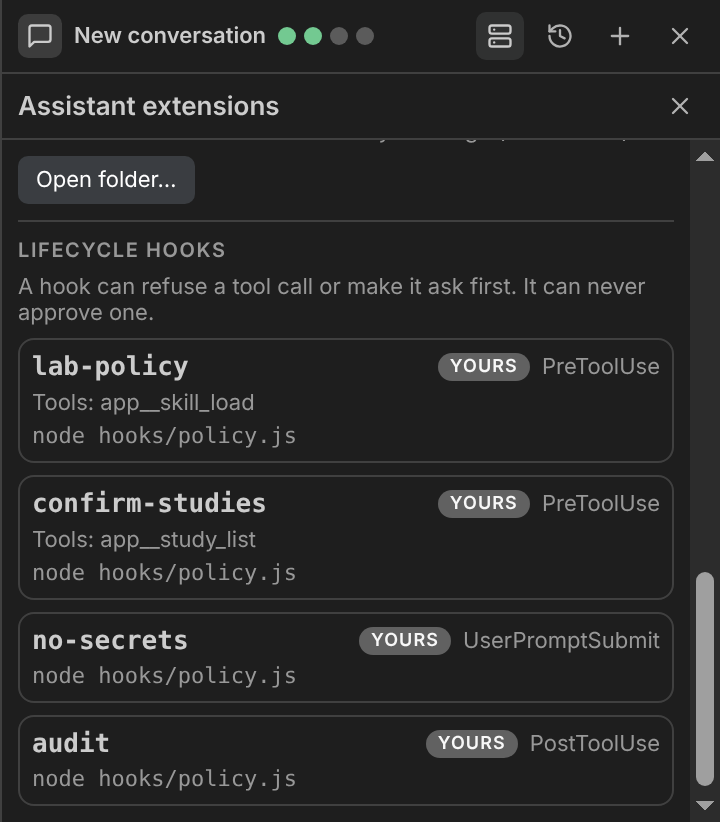
A hook is a command you want run at a fixed point of the assistant's loop. Typical uses: no solver launch outside the study folder, append every write to our audit log, confirm before anything touches the production mesh, don't send messages that contain a licence key. Hooks live in hooks.json in your assistant folder (the same one as your instructions — Settings ▸ LLM Assistant ▸ Instructions, Skills & Prompts Folder ▸ Open folder…):
{
  "hooks": [
    {
      "name": "study-folder-only",
      "event": "PreToolUse",
      "match": "kratos__run_*",
      "command": "node",
      "args": ["/opt/lab/kkss-hooks/study-folder-only.js"]
    },
    {
      "name": "audit",
      "event": "PostToolUse",
      "command": "/opt/lab/kkss-hooks/audit.sh",
      "timeoutMs": 5000
    }
  ]
}| Field | Meaning |
|---|---|
name | Lowercase letters, digits and hyphens (up to 32, starting with a letter). Shown on the tool call a hook affects. |
event | PreToolUse, PostToolUse, UserPromptSubmit or TurnEnd (below). |
command, args | The program and its arguments. It is run directly, not through a shell — no expansion (~, $VAR), redirection or && — so use a script file (or node -e, sh -c) when you need those. A relative path is resolved against the hook's working directory: the project folder when one is set, otherwise your assistant folder. |
match | Optional, tool events only: a pattern on the full tool name where * matches anything (kratos__run_*, *__save_model, mesh__mesh_transform). Without it the hook runs for every tool. |
timeoutMs | Optional, 100–60 000, default 10 000. A hook past its timeout is killed. |
modelOutput | Optional, PostToolUse only: if true, what the hook prints is added to the tool result the assistant reads, labelled [Hook output: <name>]. Otherwise the assistant never sees a hook's output. |
The four events
| Event | Runs | Exit code decides |
|---|---|---|
PreToolUse | After the tool call appears in the chat, before KKSS decides whether to ask you | 0 no opinion · 2 deny (stderr is the reason) · 3 ask you first |
PostToolUse | After the tool returned | Observes only |
UserPromptSubmit | After you press Send, before anything is added to the conversation | 2 refuses the message (it goes back into the box with the reason) |
TurnEnd | After the assistant finished, failed or was stopped | Observes only |
Every hook receives one JSON object on its standard input: the event, where the call came from (source: chat, or meta for the external MCP endpoint), the conversationId, and — depending on the event — the tool and parsed args, the message, the result (ok and up to 8 KB of text), the turn's outcome (done, error or stopped), and the files that are open (projectRoot, cad, mesh, activeCad, activeMesh). A starting point for a PreToolUse hook in Node:
// study-folder-only.js — refuse solver runs outside the open project folder
let input = "";
process.stdin.on("data", (d) => (input += d)).on("end", () => {
  const { args, files } = JSON.parse(input);
  const dir = String(args.case_dir ?? args.project_dir ?? "");
  if (files.projectRoot && !dir.startsWith(files.projectRoot)) {
    process.stderr.write(`${dir} is outside ${files.projectRoot}`);
    process.exit(2);
  }
});
What a hook can and cannot do
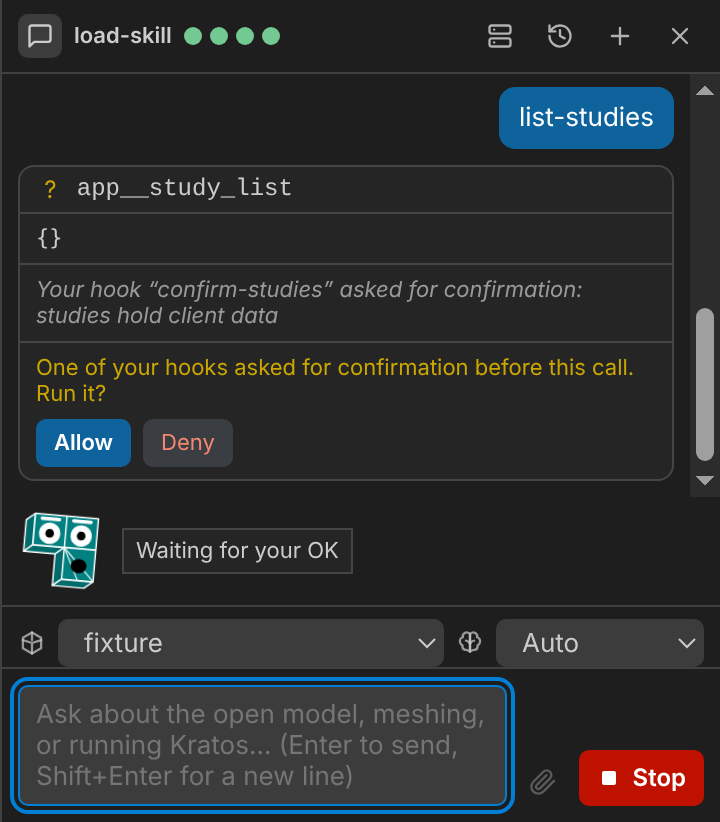
- A hook can never approve anything. Exit
0means "no opinion": a tool that would have asked you still asks, and a tool you marked read-only still runs unprompted. The strongest thing a hook can do is take a call away (2) or put a prompt in front of it (3). A hook that could approve would be KKSS approving itself. PreToolUsefails closed. If the hook times out, crashes, cannot start, or exits with any code other than 0, 2 or 3, the call is denied and the reason says the hook failed. For the other three events a failing hook is only logged — a broken audit script must not stop the assistant. Ifhooks.jsonexists but your assistant folder cannot be read (an oversized or linked file in it), every tool call is refused until it is fixed.- A denied call shows on the tool call in the chat ("Blocked by your hook …") and the assistant is told, in words it cannot argue with, that the block is your own policy and not to retry or work around it. A call a hook sent to you shows "Your hook … asked for confirmation" above the prompt, which offers only Allow and Deny — a hook that asks asks again next time, so there is no "always allow" for it.
- Hooks start with a minimal environment (
PATH,HOMEand the like, plusKKSS_HOOK_EVENTandKKSS_PROJECT_ROOT) — not KKSS's own, so a hook only sees a secret you pass it explicitly. They run in the project folder when one is set, otherwise in your assistant folder. - Stop is never blocked by a hook. Stop, New chat, switching conversations and quitting all kill a running hook.
TurnEndruns in the background, so it never delays the next message. - The same hooks guard the Codex and Claude Code subscription runtimes, since every tool call goes through the same gate. Those tools' own hook systems stay switched off, so there is one hook system, not two.
- The external MCP endpoint runs
PreToolUseandPostToolUseas well (source: "meta", no conversation). It has nobody to ask, so a hook that would ask refuses there. Actions you start from Home or the Jobs panel are your own clicks and fire no hooks, and neither does Validate (dry run), which writes nothing. - Turn the whole feature off with Settings ▸ LLM Assistant ▸ Lifecycle Hooks: nothing runs, and the panel says so.
The panel's Lifecycle hooks section lists what is loaded — name, event, tool pattern, command, and whether it is yours or the project's — and shows a message for every entry that was dropped (a typo in an event name, a duplicate name, too long a timeout). A dropped hook never runs half-defined.
Project folders
If you have set a project folder (File ▸ Open Folder…), KKSS looks in .kkss/assistant/ inside it for mcp.json, hooks.json, instructions.md, skills/ and prompts/. A server definition looks like:
{
  "servers": [
    { "id": "lab", "command": "node", "args": ["tools/lab-server.js"], "env": ["LAB_API_URL"] },
    { "id": "lab-web", "url": "https://lab.example/mcp", "tokenEnv": "LAB_TOKEN" }
  ]
}
The same fields as the form apply. A project file cannot hold a secret or a tool mark: env and tokenEnv only name variables KKSS passes through from its own environment, and marks are yours alone.
Because these files can make KKSS run a command on your computer (mcp.json, hooks.json) or change what the assistant is told on every message (instructions, skills, templates), none of them is loaded until you trust the folder. A project's hooks.json has the same fields as yours; its hooks run after yours, and — like yours — can only refuse or ask. The manager's Project folder section shows the state and the exact definitions hash. One decision covers all of the folder's files:
- Not trusted yet — read the files, then Trust this folder. Nothing has been started or sent.
- Trusted — the servers run and the folder's instructions, skills and templates apply. Revoke trust removes them.
- Changed — a file differs from what you trusted, or a new one appeared (a
git pull, an edit). Everything from the folder stops and waits until you read it and trust it again. - Unreadable — a file is a symlink, lies outside the folder, is too large, or there are too many skills or templates. Nothing is loaded until it is fixed.
Trust is tied to the folder you chose explicitly and to a hash of every definition file, and it is checked again every time a server is started or restarted and on every message — not only when the folder is opened. A folder that merely happens to contain the file (an inferred location, a document you opened) is never trusted. Only you can grant trust; the assistant has no tool for it.
If a project server and one of yours share an id, yours wins.
What stays the same
Every tool call — from the sidebar, the Codex and Claude Code runtimes, or anywhere else — passes the same approval gate, and hooks can only make that gate stricter. User servers are never handed to the subscription runtimes' own tool systems, which stay switched off.