Getting Started
KKSS (Keep Kratos Simple Stupid) is a desktop application for preparing and inspecting Kratos Multiphysics simulation models. It bundles two proven viewers — the CAD-Preview and VSCode-MDPA-Preview VS Code extensions — into one window with a mode toggle.
Installation
Grab the installer for your platform and architecture from the download page (built for every release tag by CI):
| Platform | Architectures | Artifact |
|---|---|---|
| Linux | x86-64, ARM 64 | .AppImage (portable), .deb or .rpm |
| Windows | x86-64, ARM 64 | NSIS .exe installer |
| macOS | Apple Silicon (ARM 64) | .dmg / .zip |
macOS Gatekeeper
Release builds are currently unsigned. On macOS, right-click the app and choose Open the first time to bypass Gatekeeper. A signed/notarized macOS release will remove that first-launch step when Apple credentials are enabled in release CI.
The home screen
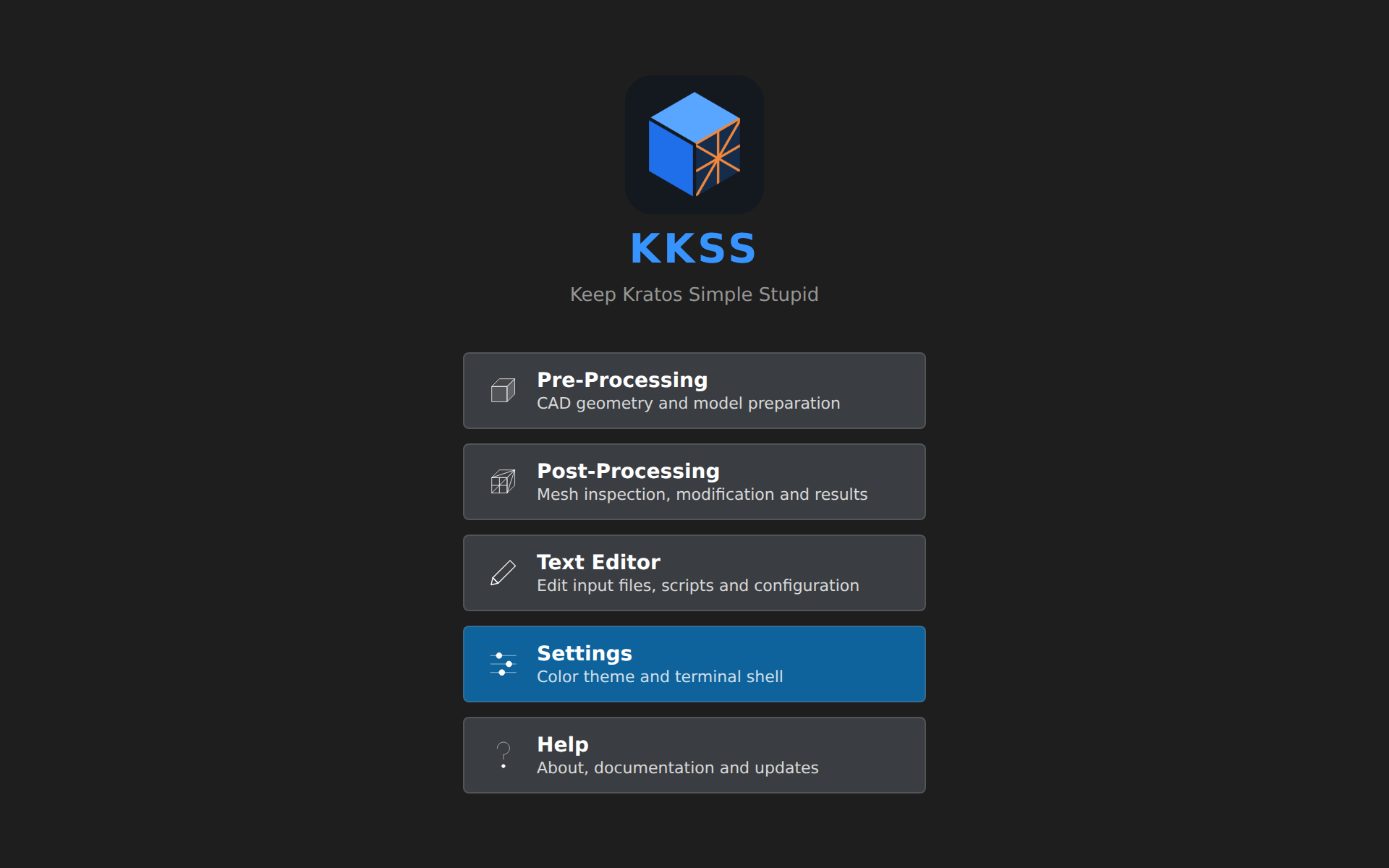
KKSS opens on a main menu with one button per task — Pre-Processing, Post-Processing, and Help. Pick a mode to enter it; the Home button in the toolbar (or Ctrl+0 / View ▸ Home) brings the menu back at any time without losing what's loaded in either mode.
Below the buttons, Recent files lists what you opened last — CAD models and meshes together, newest first. Clicking one reopens it in the mode it belongs to, so a .stp goes to Pre-Processing and an .mdpa to Post-Processing without you choosing. Files that have moved or been deleted drop off the list by themselves, and Clear forgets all of them. The same list is in File ▸ Open Recent (ten entries there, five here).
The two modes
The toolbar at the top of the window holds the mode toggle:

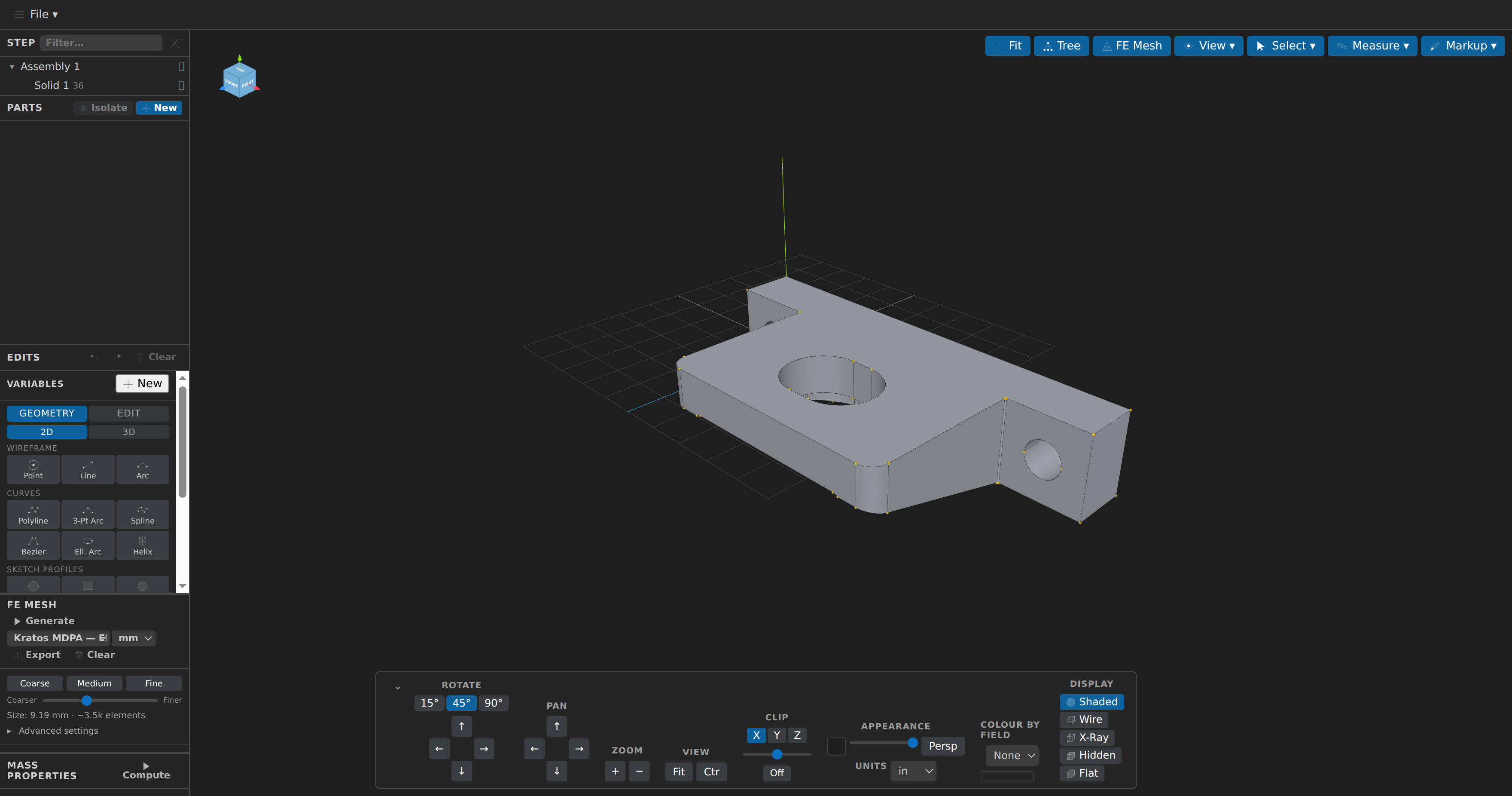
- 🔷 Pre-Processing — CAD geometry and model preparation (details). Opens STEP, IGES, BREP, STL, OBJ, PLY, glTF, and OpenSCAD
.csg/.scad(a.scadneeds a localopenscadbinary), plus the meshio++ bridge formats including Kratos CAD JSON (.cad.json) and libMesh (.xda/.xdr). File ▸ New Blank Model… starts an empty one instead; a clean closed mesh skin can even be turned back into exact geometry with the Mesh Health panel's Fit to CAD… (walkthrough). - 🔶 Post-Processing — mesh inspection, modification, and result visualization (details). Opens MDPA, VTK (legacy + XML), STL, OBJ, PLY, and 64 extended readable formats via meshio++ (Gmsh, Abaqus, Nastran, UNV, Medit (both
.meshand binary.meshb), Netgen, SU2, XDMF, Exodus, CGNS, MED, EnSight Gold, Triangle, plus STEP/IGES solid surfaces and glTF/GLB scenes, …). Result fields render as combinable contour/isosurface/quiver/deformed-shape modes, and an Advanced toolbar menu holds mesh-size and curvature/flow analysis, sphere glyphs for particle meshes, face normals for spotting inverted elements, and boundary-skin export.
Both mode views stay alive when you switch: the loaded file, the camera, and your undo history are all preserved. The two viewers share one layout — a document chip in the menubar, an icon-headed sidebar with a collapsed Advanced group, a floating toolbar and dock, and a status bar — described in Pre-Processing and Post-Processing. The app's own toolbar, home screen, chat and jobs panels use the same look, and the Terminal, Chat and Jobs buttons show as pressed while their panel is open.
In Post-Processing, File ▸ Import Mesh… adds several files to the active model in one undoable operation without welding. File ▸ Export Mesh As groups the writable formats; Export… retains its Ctrl+E shortcut. Choose Show report, or Advanced ▸ Export report…, to inspect export fidelity and provenance. Advanced ▸ Streamlines… offers worker-backed tracing and tube styling, while Flow balance… ▸ All steps scans a timeline and exports CSV. See Post-Processing for field units, pressure conversion and Fluid time-stepping validation.
For a complete first simulation, follow the geometry-to-results tutorials: the eleven worked cases start with CAD geometry, run through the Problemtype sidebar and check actual solver results. The two-fluid dam break needs a one-file alias for the stock Kratos solver wrapper, which its page explains.
Scientific plotting
Click Plots in a mesh tab to compare point histories, analyze regional quantities and follow spatial profiles as you scrub results. Dock beside/below, resize or collapse without losing curves. File → Scientific Plot Builder… opens a separate workspace for CSV/TSV or saved recipes, even without a mesh. Both offer twelve chart families, numerical analysis, recipes and CSV/PNG/SVG exports with provenance. After rerunning the obstacle-flow tutorial for its timeline, try a pressure history from it, or see the plotting guide. Missing units/time remain explicit; filenames are not timestamps.
The project folder
File ▸ Open Folder… sets a project folder — the one place KKSS treats as "where you are working". It is remembered across launches, shown in the toolbar (hover for the full path, click to change) and on the home screen, and it seeds:
- the terminal's working directory,
- the starting folder of every file dialog — Open, Save As, exports, the text editor,
- the AI assistant's context, so it knows where to put files it creates,
- project-local problemtypes: a
.kratos/problemtypes/*.jsfile inside the folder shows up in the Post-Processing Problemtype list alongside the built-ins. This only happens for a folder you chose explicitly — opening a mesh that merely sits next to one never runs it.
It is a default, not a restriction. Nothing is refused for living outside it: you can open, save and export anywhere as always, and the MCP tools are not sandboxed to it. Until you set one, KKSS infers the folder from the document you are working on — exactly what it did before — so everything works with no setup.
File ▸ Clear Project Root goes back to that inferred behavior. Note the terminal reads its directory once, when its shell starts, so changing the folder applies to the next shell rather than the one already running.
A folder kept in sync by a desktop client — ~/Google Drive, ~/Dropbox, a OneDrive folder — is a perfectly good project folder, and always has been: to KKSS it is an ordinary directory. Every sidecar KKSS writes beside your model now lands through a temp file that is renamed into place, so a sync daemon can never pick up a half-written one or raise a spurious "conflicted copy". The only visible trace is a .tmp file that exists for a few milliseconds during each save.
Guided simulation work
Home's Check environment action probes the configured Python interpreter used for manual runs and the assistant's uv-managed tool runtime separately. It checks the selected built-in problemtype's Kratos application imports, available CPU and memory, and whether the current run directory exists and is writable. The report includes each resolved executable and version and does not install packages. A failed manual check disables the mesh Problemtype Run action and guided queue launches while geometry browsing stays available; the action checks again before starting. A thread recommendation appears only when the manual runner exposes verified thread control. MPI is reported available only when the probe finds a launcher (mpirun, mpiexec or srun) and an MPI-enabled Kratos build (KratosMultiphysics.mpi, TrilinosApplication, MetisApplication import); otherwise the report says why. When available, set Settings ▸ Kratos ▸ MPI Ranks above 0 and a queue preview freezes ranks × threads per rank (Solver Threads then means threads per rank, Auto = 1) and launches the solve on that many ranks of one node, locally or on the ssh host. The run reads uncertain, never succeeded, if fewer ranks started than requested or one died under a live launcher. Multi-node launches are not supported. If the assistant runtime is missing, Home offers its existing retry and uv setup actions; interpreter changes remain in Settings ▸ Kratos. While Settings ▸ Remote ▸ Kratos host is set, the report describes that ssh host instead (“Checked on ssh host …”): its Python, Kratos applications, thread control, CPU count and the writable kkss-runs directory, because guided solves run there; the assistant-runtime line then reads as unused.
With an explicit project folder, New study records a geometry reference and its content revision in .kkss/project.json. Project-contained paths follow the folder when it moves; external paths remain explicit references. Home shows geometry, mesh, case, run and result readiness, can open an available geometry, mesh/case setup, and result in their existing viewers, and can duplicate study settings. Geometry stays external by default; Copy geometry in project creates a project-local copy, while Relink geometry explicitly repairs a missing or changed source. After exporting a mesh, Attach mesh records its revision and imports the adjacent case setup when one exists. Home opens one inline form at a time. Cancel or Escape dismisses it without applying changes; validation and service errors keep your entries available to correct and retry. Mesh reuse is an explicit choice, and quantity fields use selectors for location, component and reduction.
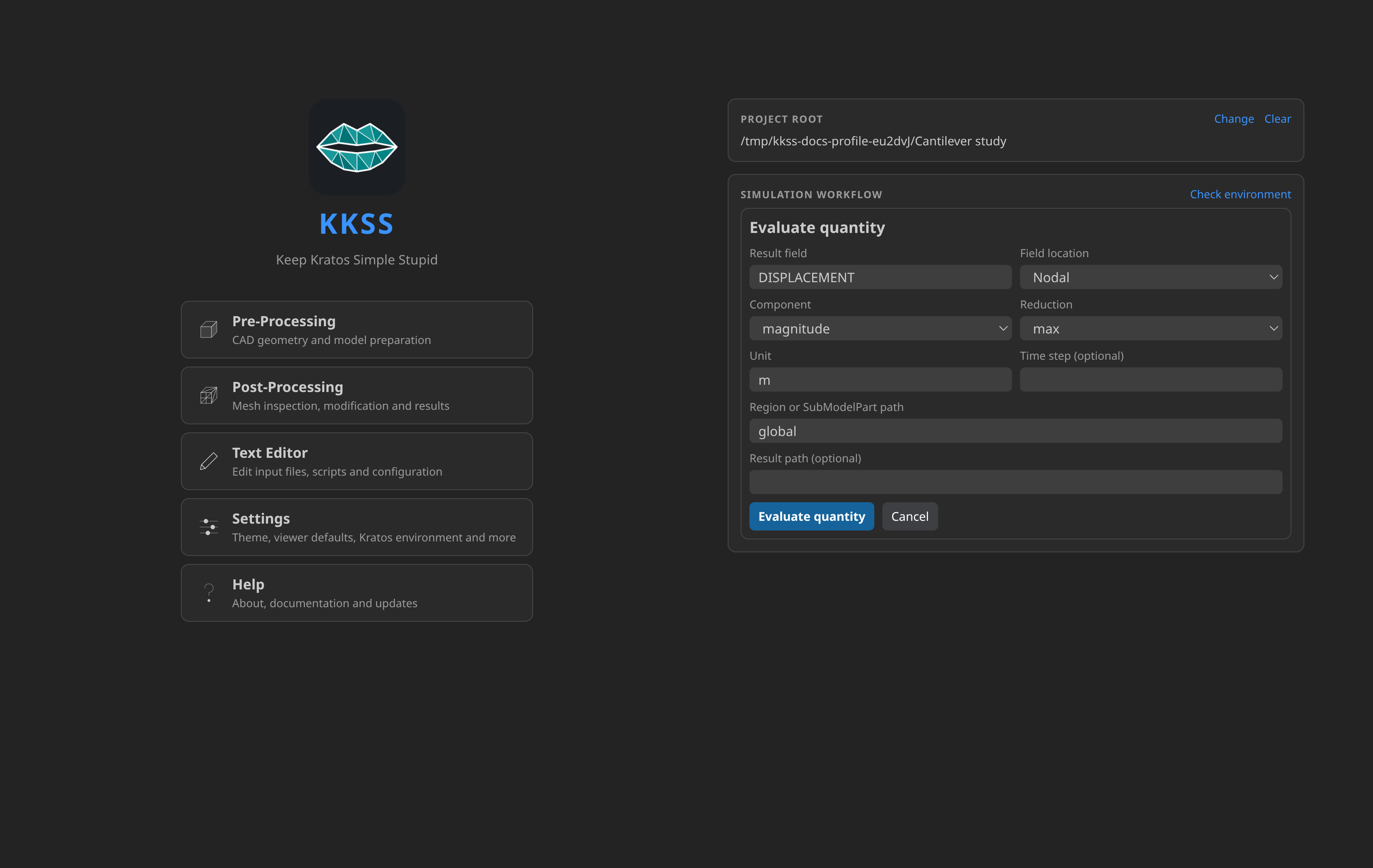
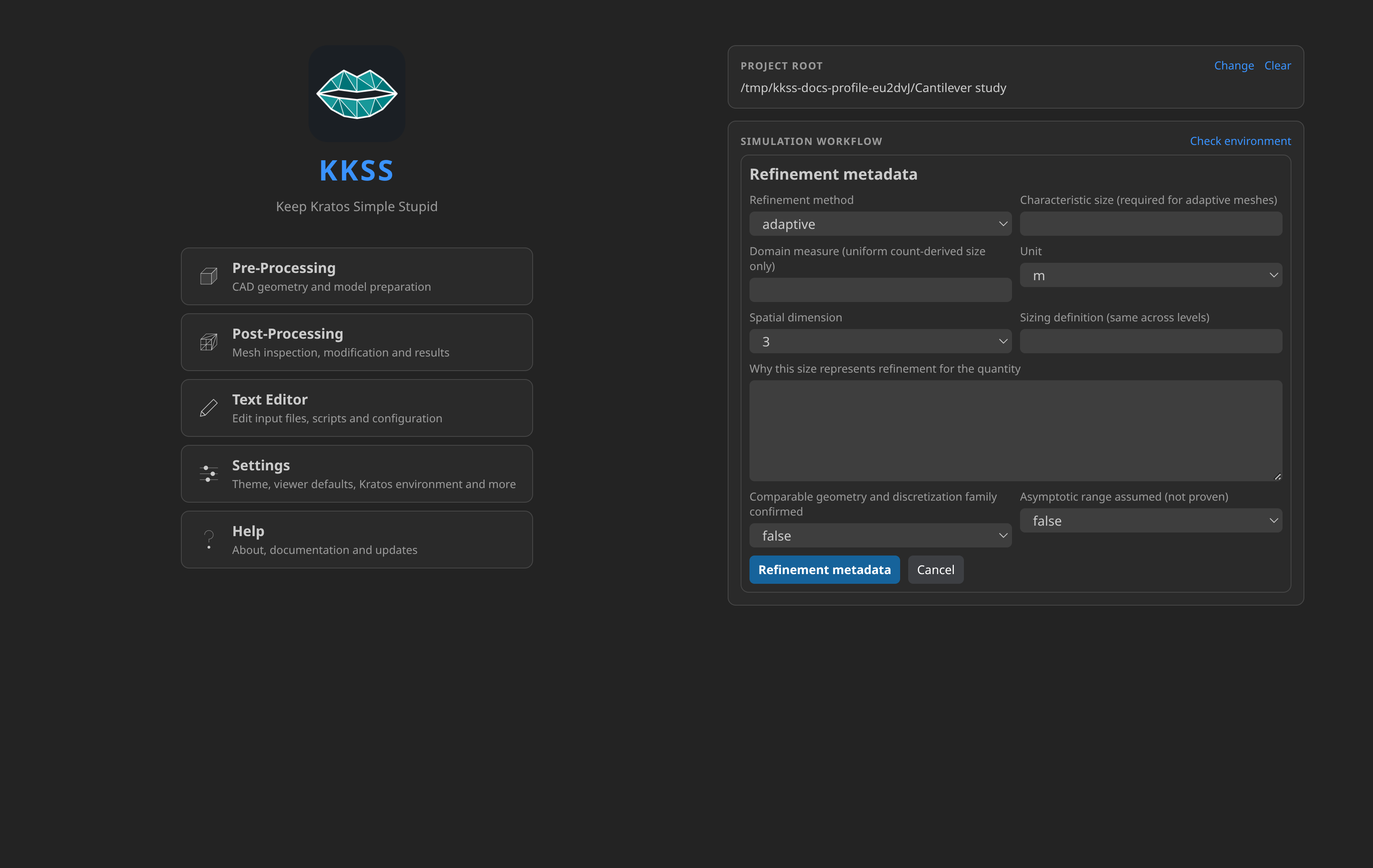
Plan run previews isolated mesh, case-generation and solve tasks under .kkss/runs/<id>/. Plan sweep expands one case-setting path and up to 50 values into fresh variant studies and run destinations. Choose Persist paused plan after reviewing the preview, then Start plan to launch it. Cancelling the start step leaves the persisted queue paused. Resume is bound to the concrete plan revision, and the queue reconciles recorded CAD mesh-export and solver request identities after restart. Home can resume one waiting variant row while holding other rows, or preview a failed row retry with fresh study and run identities. Comparisons label mesh-sensitivity and solver-parameter studies separately using recorded mesh revisions and settings. Set Refinement metadata on each run to record revision-bound characteristic size, unit, dimension, sizing method and sizing-definition justification. Adaptive meshes require an explicit characteristic size. Richardson extrapolation and GCI are shown only for at least three compatible finite quantities in a confirmed asymptotic range; the report includes refinement ratios, assumptions, diagnostics and missing values. Four or more levels also compare consecutive observed orders against a visible 10% heuristic. A terminal run can be imported as an immutable input snapshot; large results remain revision-checked links. Review run and Export review report generated-input revisions, MDPA counts, the existing mesh-quality diagnostics and versioned structural, fluid, thermal, potential-flow and shallow-water solve-step outcomes, thread provenance, configured VTK/XDMF/HDF5/GiD outputs, mesh counts and result companions in offline JSON/HTML. Evaluate quantity lets you select a result field, location, component, region, time step, reduction and unit; the result record keeps the exact source artifact revision. Units must be declared explicitly. Leave the optional time step blank for an ordinary single-result file; use an index for an extended-format time series. Leave the result path blank to use the recorded artifact. If that result later changes, its saved value is shown as stale and omitted. Variant comparison pairs matching definitions only when their units agree; missing values stay missing. The five built-in solver monitors record solver-published step outcomes; criteria that do not publish numerical convergence, interrupted runs and truncated monitor files remain explicitly unavailable. Process success alone never proves convergence. Run reviews include the upstream preparation report, generated input hashes and runtime identity when available. The assistant has the same environment, study, queue, review, quantity and variant tools under the normal transcript approval policy; preview never launches work.
Set Settings → Kratos → Solver threads to a positive OpenMP allocation, or leave Auto (0) to reserve one available CPU for the rest of the desktop. The preview shows and freezes the concrete allocation. KKSS can run one solve alongside one mesh or case-preparation task only when both verified reservations fit the available CPU budget; an interrupted or legacy task with unknown usage holds the budget until reconciled.
Home actions and their assistant tools. Every Home action has an app__* tool, so you can do the same from the chat, and both share the one study store and queue. The assistant asks first for anything that writes, like any other write tool.
| Home action | Does | Assistant tool |
|---|---|---|
| Check environment | Probes the manual Python and the assistant's uv runtime, separately | app__check_simulation_environment |
| New study, Duplicate | Records a geometry reference; copies a study's settings | app__study_create, app__study_duplicate |
| Relink geometry, Copy geometry in project | Repairs a missing or changed source; makes a project-local copy | app__study_relink_source, app__study_copy_source_into_project |
| Attach mesh, Set case snapshot | Records an exported mesh's revision and adjacent case setup; sets the case state or meshing options (a meshing change makes the attached mesh stale) | app__study_attach_mesh, app__study_set_settings |
| Open geometry / mesh / case / results | Opens the stage in its existing viewer | app__study_open |
| Plan run, Plan sweep | Previews isolated tasks; expands one setting path into up to 50 variants | app__queue_plan_preview, app__queue_parameter_sweep_preview |
| Persist paused plan → Start plan | Stores the previewed plan paused, then starts it | app__queue_enqueue, app__queue_resume |
| Pause queue, Resume queue, Cancel task | Holds the queue, restarts it, or cancels the selected task | app__queue_pause, app__queue_resume, app__queue_cancel |
| Resume row, Retry row | Starts one waiting variant row; previews a fresh-identity retry for a failed row | app__queue_resume_row, app__queue_retry_variant_preview |
| Import latest run | Imports a terminal run as an immutable input snapshot | app__study_import_run |
| Review run, Export review | Offline review of a run; JSON/HTML export | app__run_review, app__run_review_export |
| Compare runs | Facts-only report for two runs of one study | app__run_compare |
| Compare variants, Export comparison | Parent/variant comparison; offline export | app__variants_compare, app__variants_compare_export |
| Evaluate quantity, Refinement metadata | Saves a revision-bound quantity; records the sizing assumptions of a run | app__run_quantity_evaluate, app__run_refinement_set |
Working from cloud storage
If you would rather not run a sync client at all, Settings ▸ Cloud Accounts connects KKSS directly to Google Drive, Dropbox or OneDrive, and File ▸ Open from Cloud… browses it. You bring your own OAuth client — see Configuration ▸ Cloud accounts for the one-time setup.
Opening a cloud file downloads it into a local staging cache, along with any of its sidecars and companion files that exist beside it (XDMF's .h5, an OpenFOAM case's constant/polyMesh/ mesh), and everything after that behaves exactly like a local document: the same viewers, the same tools, the same assistant. Cloud tabs are marked with a ☁ in the tab strip.
Saving pushes it back. That happens on File ▸ Save, and also a few seconds after any automatic save — the CAD viewer writes your parts, edits, camera and meshing options continuously, and those ride along too. A burst of edits is coalesced into a single upload.
What to expect in the awkward cases:
- Someone else changed the file while you had it open. KKSS never overwrites their version and never discards yours. Your copy is uploaded beside theirs as
model (conflict 2026-09-06 14-03-11).stpand a warning tells you so. Nothing on your disk is touched. - You quit with an upload still running. KKSS holds the quit open for up to ten seconds to finish. If that is not enough — or the machine loses power — the local copy is still there and is flagged; the next launch tells you which files have changes that never reached the provider.
- Recent files. A cloud document stays in File ▸ Open Recent even after the cache trims its local copy; clicking it downloads again. Restoring the previous session on launch downloads a trimmed document again too, in the background: the window and its tabs appear immediately, and each such tab fills in as its download finishes (with the usual cancellable progress notice). If the account is no longer signed in, one notice says so — reconnect under Settings ▸ Cloud Accounts and reopen the document from Recent files.
- The macro library is not synced.
cad-preview-macros.jsonbelongs to a whole folder while the cache holds one document per directory, so uploading it would let two models from the same remote folder overwrite each other's macros. It stays local. - Companion files and the OpenFOAM mesh tree travel with the document. An XDMF's sibling
.h5and a.foamcase'sconstant/polyMesh/folder are downloaded when you open the file and uploaded when they change (the folders are created on the provider as needed). They follow the same conflict rule as the document, file by file: if someone changed one remotely, yours is uploaded beside it aspoints (conflict …). If any of them cannot be downloaded the open fails with a message instead of showing an empty case. Other folders of a case (system/, time directories) are not synced, and deleting a file locally never deletes it remotely.
The cache is trimmed on an LRU budget (Settings ▸ Cloud Accounts ▸ Cache Size Limit…, 2 GB by default). A document that is open, or that holds an unsent change, is never trimmed.
Working on a remote machine
File ▸ Open Remote… opens a file from a host you listed under Settings ▸ Remote, over your own ssh setup, with the same staging and write-back behaviour as cloud storage; View ▸ New Remote Shell… starts an ssh shell in the terminal panel; and the assistant's Kratos tools can run on a remote host. See Remote Sessions.
Picking up where you left off
KKSS reopens your last session on launch: every document you had open in each mode, which one was focused, the screen you were on, and whether the terminal or chat panel was showing — and the chat sidebar comes back on the conversation you were last in. Documents that have since been deleted or moved are quietly dropped, with a note saying how many — you never land on a tab pointing at a file that isn't there. A cloud document KKSS has trimmed from its local cache is the exception: its tab is kept and downloaded again in the background.
Turn it off with Settings ▸ Restore Last Session to start clean every time. (Setting KKSS_NO_RESTORE=1 in the environment does the same for one launch, which is handy if a particular document is giving the viewer trouble.) Opening a file from the command line always wins: it takes the screen and gets its own tab, leaving the restored documents untouched.
The toolbar also has an interface-scale picker on the right (75 %–150 %) for adjusting how large the whole app appears — useful on high-DPI or low-resolution displays. It scales every part of the window (toolbar, viewers, terminal, chat) together, is remembered across launches, and can also be driven from the keyboard: Ctrl + / Ctrl - step through the sizes and Ctrl+Shift+0 resets to 100 % (also under View ▸ Zoom In / Zoom Out / Reset Zoom).
| 🔷 Pre-Processing | 🔶 Post-Processing |
|---|---|
 | 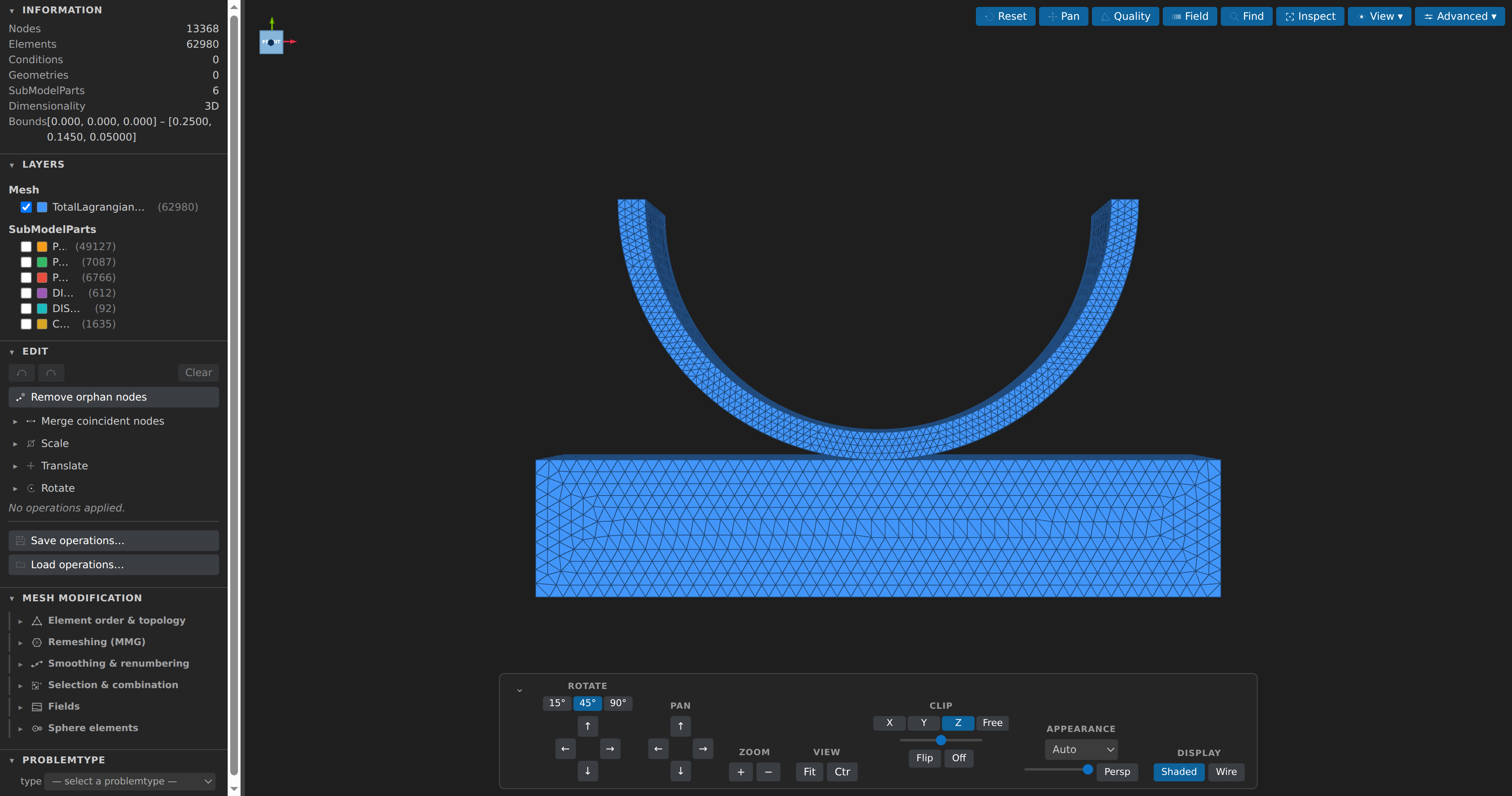 |
About & updates
The Help menu holds, besides About and What's New below: KKSS Manual… (this documentation, built into the app and readable offline in its own window — links that leave it open in your browser), License… (the AGPL-3.0-or-later text KKSS ships under), KKSS Documentation (the same site online), and links to the two embedded engines' repositories, CAD-Preview and VSCode-MDPA-Preview.
Help on the home screen (or Help ▸ About KKSS…) shows the app version and checks GitHub for a newer release. Include prerelease updates in Settings controls whether stable-only or prerelease releases are selected. When an update exists, Update now downloads and installs it in place on Windows and on the Linux AppImage — restart when prompted. .deb, .rpm and unsigned macOS installs instead get a button to the releases page. No network? The dialog still shows your version and offers a Retry.
Installing a supported file type (.stp, .mdpa, .vtk, .post.msh and the other formats shown in the Open dialog) opens it in KKSS when the file is double-clicked. The kkss://open?file=… link form accepts the same local files; links to application pages and relative paths are rejected. An existing file KKSS cannot read gets a warning naming its suffix and linking the supported formats rather than being ignored.
After an update, the next launch automatically pops up a What's New window listing what changed since the version you last ran — no popup on a first install, and it only ever shows entries newer than what you'd already seen. Dismiss it with Got it (or Esc); reopen the full history any time from Help ▸ What's New….
Embedded terminal
The Terminal toolbar button (or Ctrl+` / View ▸ Toggle Terminal) opens a shell panel below the viewer — handy for launching Kratos runs (python MainKratos.py) while watching the model. The session starts in the current file's directory, runs PowerShell on Windows and your $SHELL on macOS/Linux (changeable under Settings ▸ Terminal Shell), keeps running while hidden (hide it with the Hide button in the panel's corner, the toolbar button, or Ctrl+` ), and offers a restart when the shell exits. The panel is shared by both modes; its height is fixed in this version.
AI assistant
The Chat toolbar button (or Ctrl+Shift+L / View ▸ Toggle AI Chat) opens a chat sidebar on the right where an LLM can drive KKSS for you: load and edit CAD models, define sub-model-parts, generate and export meshes, inspect and transform MDPA/VTK files, set up Kratos cases, and run simulations. The assistant works through the same tool servers (MCP) that power the two viewers plus the standalone kratos-mcp-server; the dots in the sidebar header show each server's status (green = ready, red = unavailable, yellow = waiting for your trust, grey = starting or disabled — hover for details), and the server button beside them opens the MCP manager, where you can restart a server, see its tools, and add servers of your own — and the same panel lists your standing instructions, skills and /name prompt templates, plain text files that guide the assistant without ever changing what a tool may do, plus your lifecycle hooks, commands that can refuse a tool call or make it ask first (see Assistant extensions). The first two ship with KKSS; the Kratos server and a PDF reader (pdf-insight-mcp, pinned) are fetched with uvx and share one uv, which KKSS can install into its own data directory when it is missing.
CAD layers (list_layers / set_layer / assign_layer, in <model>.layers.json) organise what is shown, locked or drawn together — never the finite-element sub-model (that is Parts); drawing exports take an optional layers filter, and layer structure syncs with the post mode's view layers. remesh_mesh remeshes an FE mesh with MMG, and list_scad_parameters / convert_scad handle OpenSCAD Customizer models without touching the source. For mesh-format CAD models, the assistant replays pending edits when it generates a mesh, exports an FE mesh or compares models. save_model bakes the pending edits into the source file itself (STEP, IGES, BREP, STL, OBJ or PLY) after approval, keeping a .bak copy; it writes exactly what File ▸ Save writes in the CAD viewer, so save or close the tab first — the assistant cannot see an open, unsaved tab. Mesh health, inspection and promotion tools report the raw source.
The assistant can also pack a run's per-step results with mesh_pack_series, matching File ▸ Pack Time Series Into One File…. XDMF needs a constant mesh; keep its .xdmf and sibling .h5 together. Use target: "pvd" for changing meshes or an already-stepped source, and keep the index and step directory together. Packing/resampling return per-step export reports, and the preview's Advanced ▸ Export report… inspector reviews the same fidelity categories used by the write tools. Boundary flow scans support all steps and explicit pressure-density conversion; field conversion accepts a constant or same-kind density field without guessing units or pressure reference. See the mesh guide.
Scientific plotting shares its numerical core with the assistant: mesh__plot_dataset evaluates recipes and can export all samples with provenance (normal write approval applies); table inspection, saved-run discovery/binding and exact time/target resolution are read-only. Ask it to compare the obstacle's upstream and downstream pressure histories from a rerun of the tutorial, with explicit times and units. It must not invent result ownership, boundary coverage or correspondence between remeshed IDs.
Each message uses the tools available when you send it. If a server becomes ready while the assistant is responding, its tools become available on your next message. You can wait for its status dot to turn green before sending a task that needs it.
If Kratos cannot start, a message below the chat header explains the failure. Install uv for KKSS downloads the official Astral installer and installs uv into KKSS’s data directory without administrator privileges or changes to your PATH or shell profiles. It runs only when you click the button. If uv already works, KKSS uses it instead. Retry reconnects after a network, package, or startup failure without restarting CAD, mesh, or the app; a first download can take up to five minutes. Normal chat remains available during setup.
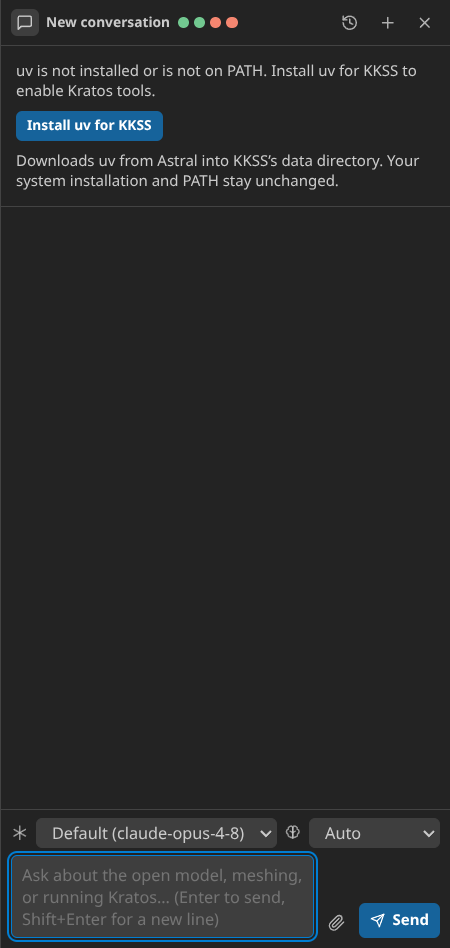
This installs the uv launcher, not a bundled Kratos engine or Python runtime. uv keeps its usual cache and Python locations. A compatible Python MCP dependency is selected alongside the pinned Kratos tool server.
Before first use, pick a provider under Settings ▸ LLM Assistant. API-backed providers use a key:
- Anthropic (Claude) — the default; set Anthropic API Key (and optionally the model, default
claude-opus-4-8). - OpenAI-compatible — any
chat/completionsbackend: set the Base URL (e.g.https://api.openai.com/v1orhttp://localhost:11434/v1for Ollama), the model name, and a key if the backend needs one. - OpenCode Zen — pay-as-you-go curated models; set the shared OpenCode API Key (from
https://opencode.ai/auth). Defaults toglm-5.3-flash. - OpenCode Go — $10/$40 subscription over open coding models; uses the same OpenCode API Key. Defaults to
glm-5.3-flash.
You can also use a subscription account through the official local agent tools:
- ChatGPT subscription (Codex) — install the Codex CLI, run
codex login, then select this provider. KKSS uses Codex App Server with only KKSS's MCP tools enabled. - Claude subscription (Claude Code) — install Claude Code, run
claude auth login, then select this provider. KKSS uses the Claude Agent SDK with a private KKSS MCP bridge.
Use each provider's Check installation and sign-in… action to verify the executable and account. Subscription mode uses the account managed by the official tool, removes inherited API-key and gateway variables, and never falls back to paid API requests. Provider subscription limits and model availability still apply. The Executable path… action is available when automatic detection cannot find the installed tool.
Subscription runtimes are restricted to KKSS tools; their shell, file, web, plugin, connector, and sub-agent tools are disabled. The same KKSS approval dialog still appears before tools that change files. Conversations retain a provider session when possible; if a provider session has expired or is missing, KKSS starts a new session from the saved transcript without replaying historical tool calls.
Keys are stored encrypted with your OS keychain when available. Edits made by the assistant land in the same sidecar files the viewers use — reload the file to see them. Send with Enter and stop a running response with the same button.
Approving what the assistant does
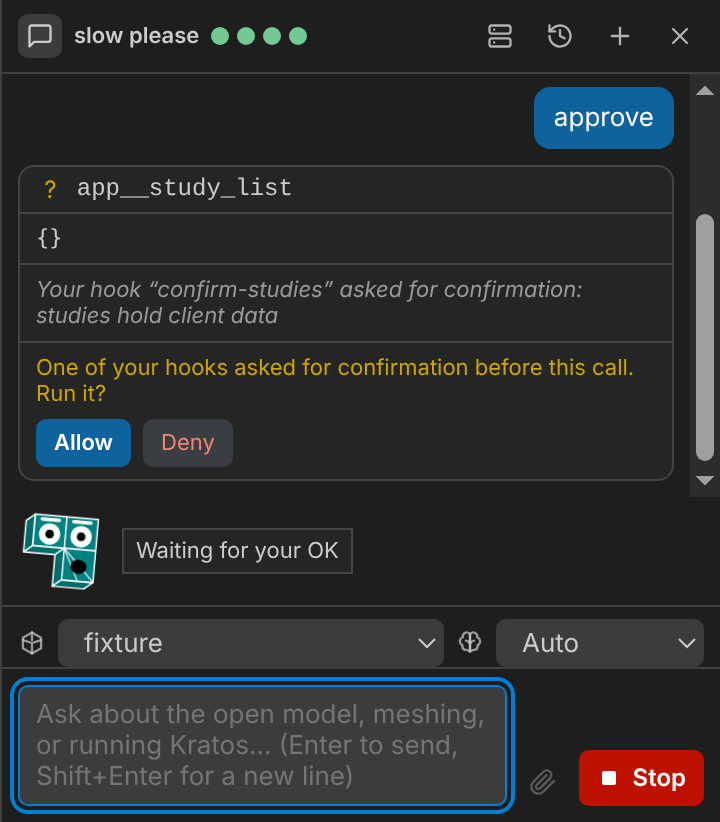
The assistant's tools are not suggestions — they write files, overwrite meshes and start solves. mesh_transform, for instance, overwrites the file it is given when you don't name an output path. So a tool that changes anything is shown to you before it runs: the call appears in the transcript with its full arguments and three buttons.
- Allow — run it this once.
- Always allow in this chat — stop asking about that tool for the rest of this conversation. It is per tool and per conversation; it is never remembered after you start a new chat or restart KKSS.
- Always allow in project folder — shown only when you have opened a project folder (File ▸ Open Folder…) and every path in this call is inside it. It stops asking about that tool for the rest of this conversation, but only while the paths it touches stay inside the folder; a call that points anywhere else (or uses a relative path) asks again. Tools that run scripts or solvers never get this option.
- Deny — don't run it. Nothing on disk is touched, and the assistant is told you refused, so it explains what it wanted rather than trying again.
Read-only tools — inspect, measure, mesh info, render — run without asking, so asking questions feels exactly as it did before. A tool KKSS has no policy for always asks — which includes every tool of a server you added yourself, until you mark it read-only in the MCP manager. Kratos status, listing, validation and job-status tools run without asking; starting or cancelling a solve, scaffolding a case and writing result files ask, like any other write.
Your own rules. If KKSS's classification isn't strict enough for you, write a lifecycle hook: a command in hooks.json that runs before each tool call and can refuse it or make it ask first — "no solver launch outside the study folder", "always confirm anything under production/" — or after it, to keep an audit log. A call a hook refused shows "Blocked by your hook …" on the tool call and the assistant is told not to retry it; a call a hook sent to you shows "Your hook … asked for confirmation" above the prompt, which offers only Allow and Deny. A hook can only make the gate stricter: it can never approve a call, skip a prompt, or widen what a tool may do. Settings ▸ LLM Assistant ▸ Lifecycle Hooks turns the feature off.
Settings ▸ LLM Assistant ▸ Tool Approval changes this: Ask before tools that change files (the default), Ask before every tool, or Never ask. The last one turns the gate off entirely and asks you to confirm once before it does.
Note this covers the built-in sidebar only. If you expose the toolset to an external MCP client (below), that path is protected by its bearer token alone — there is nobody at the keyboard to ask.
For a few CAD tools — applying edit operations, and running a parametric or saved script — a fourth button appears: Validate (dry run). It runs the same call in a mode that writes nothing and executes nothing, and shows you the result right there in the prompt. The prompt stays open, so you read the report and then choose Allow or Deny.
What it checks is narrower than a preview: it tells you which operations parse and are legal, not what the geometry would look like afterwards. The report is for you only — the assistant is not told about it, and is not told a call happened when it did not.
Choosing the model and thinking level
A strip above the message box carries two quick controls, each with its own mark: the model picker (a small glyph for the active provider — Anthropic, OpenAI-compatible, OpenCode, Codex or Claude Code — beside a dropdown) and the thinking picker (a brain). The model dropdown offers Default, the models KKSS knows for the active provider, the model you currently use if it is custom, and Other…, which opens a text box for any other id (a gateway or local-server model) — press Enter to apply it. The thinking picker offers Auto (the provider's own default), Off, Low effort and High effort.
Both write the same settings as Settings ▸ LLM Assistant (…Model for the active provider and Thinking), so the three always agree, and a change applies from your next message — a reply in progress is never altered. Notes:
- Off asks for no thinking where the model allows it; models that always think keep thinking. A model that rejects the chosen level is retried automatically without it, so a picker choice never breaks a turn.
- For OpenAI-compatible backends the level is sent as
reasoning_effortonly when it is not Auto (Off is sent asnone); a gateway that does not recognise it is retried without it. - The thinking picker is disabled for the Codex and Claude Code subscription providers, which choose their own reasoning.
- If your administrator pins the model through the environment, the model dropdown is shown but locked.
- Max Output Tokens (Settings only) caps one reply; leave it empty for the default.
Tokens, context and cost
The sidebar header shows how much of the model's context window your last message filled, and roughly what the conversation has cost so far — for example 12.4k/1M · $0.03. Hover it for the full breakdown: the model, the split between fresh and cached input, and the output total.
It turns amber as the window fills up. That is worth acting on: when a conversation no longer fits, the provider rejects it outright, and the fix is to start a new one with the header's + (New conversation) button (the old conversation is saved, not lost).
Cost is an estimate from published per-token prices for the Claude models KKSS knows about. Point the OpenAI-compatible provider at your own gateway — Ollama, OpenRouter, a local model — and KKSS has no way to know what it charges, so by default you get token counts and nothing else rather than a made-up figure. If you know the figures, enter them under Settings ▸ LLM Assistant (Custom Context Window and the Custom … Price rows, in USD per million tokens): the readout then shows the context fill and, once both the input and output price are set, a cost — and its tooltip says the numbers are yours. Cache prices are optional and default to the input price (no discount assumed). These values apply to whichever unlisted model is currently selected and never override a model KKSS has reviewed prices for. None of this leaves your machine; it is calculated from what the provider returned with your response.
When a conversation gets long
Every message you send includes the whole conversation so far, so a long one eventually stops fitting in the model's context window. Rather than failing, KKSS starts leaving the oldest tool results out of what it sends — usually the bulk of a long conversation — and a line under the header tells you how many.
Your transcript is not changed: every result is still there in full, and it is still saved. Only what the assistant is re-sent shrinks, and it can always re-run a tool if it needs an older result again.
If even that is not enough, you will get the "start a new conversation" message. The old one is saved and one click away in the header's history button.
Seeing what the assistant sees
Some tools return pictures — a rendered snapshot of a model, or a side-by-side comparison of two. Those appear in the tool's entry in the transcript, so when the assistant says a part looks wrong you can look at the same image it did. A result that has just arrived opens by itself; older ones in a long conversation stay folded away until you click them.
These tool-result images live for as long as the app is running. They are not written into the saved conversation, so reopening it later shows the tool call and its text, without the pictures. (Files you attach are different — see below.)
Kraty
Turn on Settings ▸ LLM Assistant ▸ Kraty to show a small animated face above the message box: drawn after the Kratos Multiphysics mark: a flat teal block of three extruded cells with thin white edges, the bottom cell split into triangles. The eyes sit in the top two cells and the mouth in the triangulated one (original artwork in the mark's palette, not a copy of the logo). It is off by default and never opens, focuses, sounds or pops up by itself. Its expression only mirrors what the sidebar already shows: thinking while the model has not started writing, writing while text streams in, running a tool while a tool call has no result yet, waiting for your OK while an approval prompt is open, done briefly when a turn ends, and a worried face after an error. The speech bubble uses fixed interface strings, never text from the model or a tool. With reduced motion enabled in the system, the expression still changes but the idle bobbing and blinking stop, and the animation pauses while the sidebar is hidden.
Attaching images and PDFs
Paste a screenshot into the message box, drop files onto the sidebar, or use the paperclip button to attach up to four images and three PDFs to a message. A thumbnail (or a file chip for a PDF) appears above the box; the × removes it before you send. You can send files with no text at all.
- Images (PNG, JPEG, WebP; a GIF becomes its first frame) are resized to at most 1568 px on the long edge before they are sent, so a full-screen capture stays small. SVG is not accepted.
- PDFs are sent as they are, up to 5 MB each. A larger PDF is refused rather than altered — ask the assistant to read it by path instead (below).
- Attachments are saved with the conversation, so reopening it shows them again and the assistant still sees them on later messages. Each conversation keeps about 16 MB of attachments; past that the oldest messages' files are dropped (their bubbles say so) and the assistant is no longer sent them.
Which providers accept what:
| Provider | Images | PDFs |
|---|---|---|
| Anthropic | yes | yes, natively |
| OpenAI-compatible, OpenCode Zen / Go | only after you turn on Settings ▸ LLM Assistant ▸ Allow Image Attachments (KKSS cannot tell whether a gateway's model reads images) | no — see below |
| Codex / Claude Code subscription | no | no |
When the current provider cannot take a file, the paperclip is disabled or the file is refused with the reason, and your text is put back in the box. If you switch to a provider that cannot take files mid-conversation, earlier files are left out of the requests (a short note stands in for them) and stay in the saved conversation.
Reading a PDF by path. Every provider can read PDFs through the preconfigured pdf__* tools (text by page range, search, tables, outline, page info): give the assistant the file's path — for example a spec sheet in your project folder. They are read-only, so they run without asking. The PDF reader starts like the Kratos server, so the first use downloads it (a few seconds to minutes), and if uv is missing the Install uv for KKSS button above recovers both. There is no PDF reader in the offline Docker image unless the container can reach PyPI.
Conversations
Conversations are saved as you go and survive quitting the app — including the tool calls that record what the assistant actually did to your files, which is often the only account of it. The header's + button starts a fresh one and keeps the current one; nothing is discarded, so there is nothing to confirm.
The history button in the sidebar header lists your saved conversations, newest first, each named after its first message and showing when you last used it:
- click a row to switch to it — the full transcript comes back;
- the pencil renames it (
Enterto confirm,Escto cancel); - the trash can deletes it, and asks once (the button turns into Delete?) because that is the one thing here you cannot undo.
The 50 most recently used conversations are kept; older ones are dropped, except the one you currently have open. Switching away from a conversation while the assistant is still working stops that response first and records how far it got, so the transcript you come back to reads honestly.
Use your own MCP client
If you'd rather drive KKSS from an external LLM client (Claude Code, GitHub Copilot, Claude Desktop, another agent) than the built-in sidebar, enable Settings ▸ MCP Server. KKSS then serves the same unified cad + mesh + Kratos toolset — plus the Kratos worked-example resources and guided prompts — over a localhost Streamable HTTP MCP endpoint. Use Copy Address & Token… to grab the http://127.0.0.1:<port>/mcp URL and its bearer token (default port 7391). It is off by default and bound to localhost only; the token gates access because these tools read and write files on disk — Regenerate Token… rotates it (update your clients afterwards). Allowed Tools limits what a client may call: Read-only tools (the default for a newly enabled server — inspect, measure, validate, job status), Read-only tools and the listed write tools (name the extra tools under Allowed Write Tools) or All tools (what the server allowed before this setting existed, and what an install that already used it keeps). A refused call returns an error that says so. Change the port under the same menu (toggle the server off and on to rebind). Tools arrive namespaced cad__* / mesh__* / kratos__*; the Kratos worked examples show up as MCP resources and prompts.
Your lifecycle hooks apply to this endpoint too (with source: "meta"). The endpoint has nobody to ask, so a hook that would make a call ask for confirmation refuses it instead.
Leave KKSS running with the server enabled, then point a client at it:
Claude Code — register it as an HTTP server (repeat --header for the token):
claude mcp add --transport http kkss http://127.0.0.1:7391/mcp \
  --header "Authorization: Bearer <token>"
Run /mcp inside Claude Code to confirm kkss is connected and list its tools. Remove it later with claude mcp remove kkss.
GitHub Copilot (VS Code) — add an HTTP server entry to .vscode/mcp.json in your workspace (or run MCP: Add Server… from the Command Palette). Using an input keeps the token out of the file — VS Code prompts for it once and stores it securely:
{
  "inputs": [
    { "id": "kkss-token", "type": "promptString", "description": "KKSS MCP token", "password": true }
  ],
  "servers": {
    "kkss": {
      "type": "http",
      "url": "http://127.0.0.1:7391/mcp",
      "headers": { "Authorization": "Bearer ${input:kkss-token}" }
    }
  }
}
Click Start on the server in mcp.json, then open Copilot Chat in Agent mode and enable the kkss tools from the tools (🛠) picker.
Any MCP client that speaks Streamable HTTP with a bearer header works the same way — give it the URL and the Authorization: Bearer <token> header.
Kratos background jobs
Open Jobs in the toolbar or View ▸ Toggle Jobs to follow simulations started through the Kratos MCP server, including jobs launched by an external MCP client. The toolbar shows the active count. Jobs and Chat share the right-hand panel; switching between them keeps the conversation and simulations running. The Jobs panel works without an LLM API key.
Select a job to see its case directory, state, elapsed time, current step/time when available, and the last 100 log lines. Active jobs refresh every five seconds; Refresh also reloads the selected log. Cancel simulation requests cancellation from the server. A failed cancellation is shown beside the button.
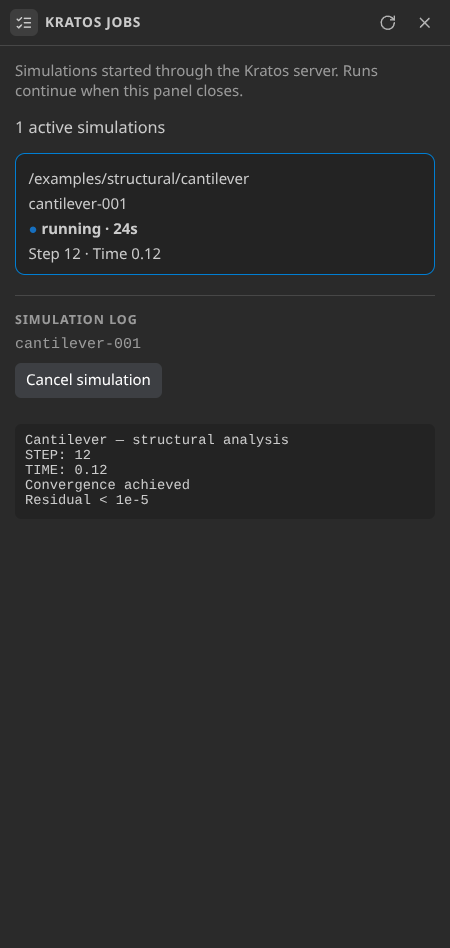
If the server disconnects, the panel keeps the last known state and offers Retry. Missing runtime setup offers Install uv for KKSS, using the same setup flow as Chat. Server-owned job records are rediscovered after reconnecting or reopening Jobs after an app restart. Closing the panel, stopping chat, and quitting KKSS do not cancel these background jobs.
The pinned Kratos server (0.9.0, 110 tools) covers far more than starting a run: it builds and edits MDPA meshes, converts geometry, drives a live simulation step by step (session_*), post-processes results (results_*), scaffolds CoSimulation and FSI projects (create_cosim_project, create_fsi_project) and launches MPI runs (run_simulation with mpi_ranks and omp_threads, with per-rank logs and whole-process-group cancel). Ask the assistant for any of these; the tools that write files ask for approval like the others. KKSS's guided queue has its own single-node MPI runner (Settings ▸ Kratos ▸ MPI Ranks, off by default), independent of this server's mpi_ranks; the manual Problemtype Run action stays threaded.
This panel covers kratos__run_simulation jobs. Runs started from the mesh Problemtype UI or mesh__case_run keep their existing run controls, including File ▸ Stop Kratos Run. Progress and recovered completion states come from the Kratos server; a percentage is not estimated when the server supplies only step/time.
Text editor
The Edit toolbar button opens the file currently loaded in the active mode (.mdpa, .stp, …) as plain text — handy for touching up an input deck without leaving the app. Text Editor on the home screen (or File ▸ Open in Text Editor…) opens any file via a dialog instead. It's a lightweight editor for input files, scripts and configuration — .json and .py get syntax highlighting; binary or very large files are refused with a notice. Ctrl+S saves, Ctrl+Shift+S saves as, and the toolbar has Open/Save/Save As buttons. Unsaved changes show a dot next to the file name; switching screens never loses the buffer, and closing the window with unsaved changes prompts to save. Pair it with the terminal panel (Ctrl+` ) to edit and launch a Kratos case side by side.
Settings
Settings ▸ Open Settings… (Ctrl+,) opens the Settings page. The home screen's Settings button and the chat sidebar's gear open it too. It is KKSS's equivalent of VS Code's settings editor: everything the two embedded extensions would read from VS Code's settings, and everything KKSS adds on top, on one searchable page with an icon per category in the left menu and above each section. Each row shows its id (for example kratos.pythonPath), when a change takes effect, and a reset icon once it differs from the default. A value locked by a KKSS_* environment variable (see Web deployment) shows as Set by the environment and cannot be edited.
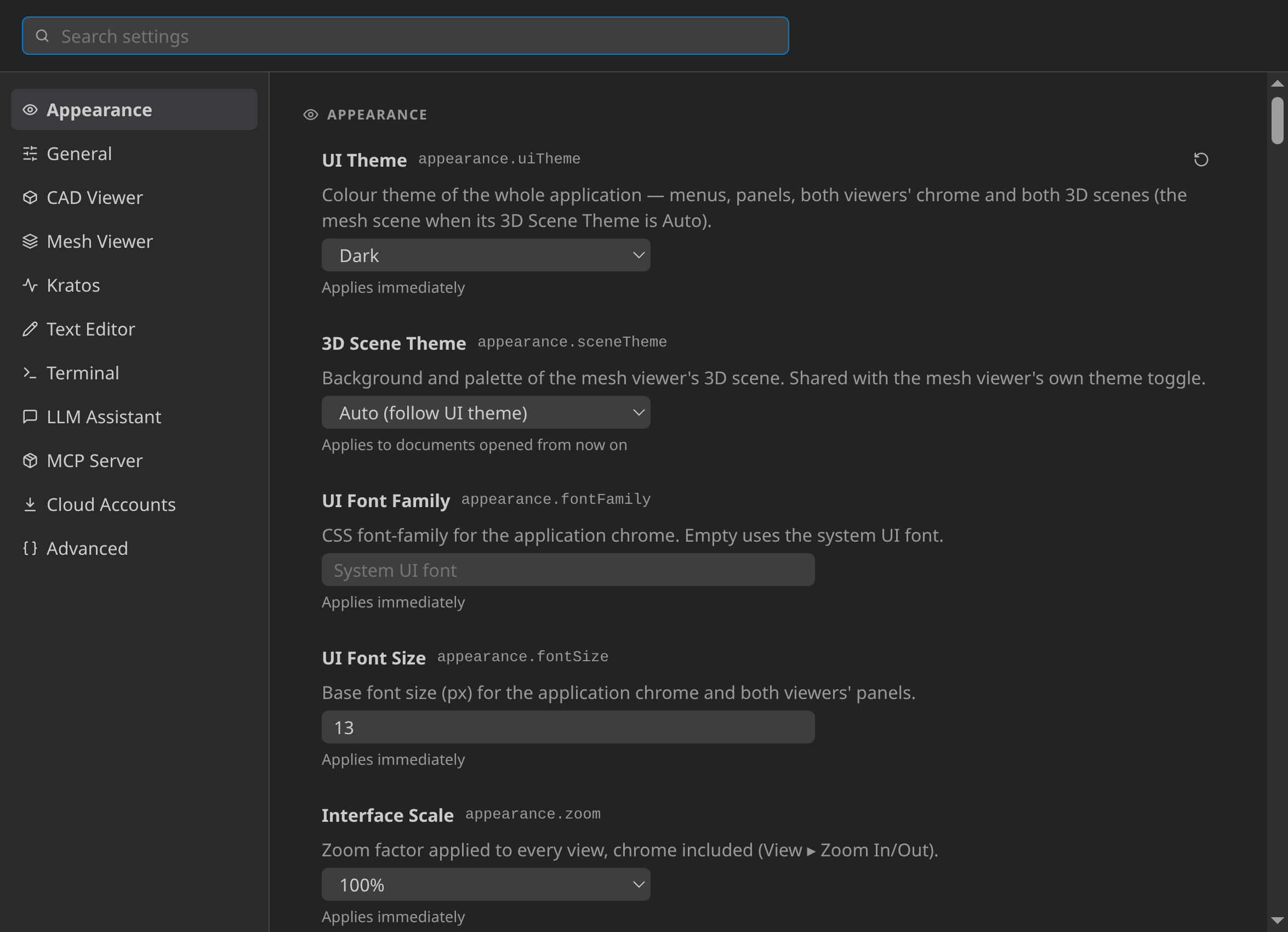
| Category | What it holds |
|---|---|
| Appearance | UI Theme: Follow system / Dark / Light / High contrast (dark) / High contrast (light). It applies immediately to the whole app, both viewers' panels and both 3D scenes. The mesh scene follows it while its 3D Scene Theme is Auto; Dark / Light / Scientific pin the scene instead. The same row also covers UI font family and size, and the interface scale. |
| General | Project folder, Restore Last Session, whether What's New is shown after an update, and the update channel (stable, or including prereleases). |
| CAD Viewer | The cadPreview.* defaults for newly opened models: background colour, up axis, grid and axes on open, default mesh size, B-rep tessellation quality, the Kernel Job Timeout (how long one CAD kernel job may run before its worker is restarted), and the OpenSCAD fallback binary, backend and library folders. A per-document sidecar value or a runtime toggle wins once set. |
| Mesh Viewer | Large-mesh summary threshold, the Timeline Frame Cache (memory for recently viewed time-series frames), the 3D Renderer (vtk.js, or the experimental VTK-wasm backend), the Plot Extraction Cache (a bounded on-disk cache so plots reopen after a restart without re-extracting), Mesh Export Provenance, and where the Flowgraph editor opens (below or beside the 3D view). |
| Kratos | The Python interpreter, the compiled Kratos install and the extra environment variables used when a problemtype case is Run. A folder that does not look like a Kratos install is flagged. The same category holds Solver Threads (0 = Auto), Isolate Runs and the Runs Folder for per-run workspaces, the problemtype, material-library and batch-recipe folders scanned under the project folder, whether solvers are stopped when KKSS quits, and a Check simulation environment action that reports on Home. The install path and environment also reach the assistant's Kratos tools; Restart with current environment applies a change without restarting KKSS. |
| Text Editor | Font size and family, tab size, word wrap, line numbers. All apply immediately. |
| Terminal | Shell (applies to the next session), font size and family, scrollback, cursor style and blink. |
| LLM Assistant | Provider, Tool Approval, MCP Servers (opens the sidebar's manager for your own tool servers), Standing Instructions & Skills and the folder holding them, Lifecycle Hooks, API keys, models, the OpenAI-compatible base URL, the Codex / Claude Code model and executable, and the optional context-window and price rows for models KKSS has no reviewed figures for. Keys are write-only: the page shows whether one is stored, never the key itself. |
| MCP Server | Enable the localhost endpoint, its port, which tools a client may call, and copying or regenerating the token (see AI assistant ▸ Use your own MCP client above). |
| Cloud Accounts | Per provider: client ID, client secret, and connect / disconnect. Also the cache size limit, and clearing the cache. |
| Remote | SSH hosts for File ▸ Open Remote… and View ▸ New Remote Shell…, and the host that runs the assistant's Kratos tools. |
| Advanced | Flowgraph Asset Override — development only: serve a local Flowgraph checkout instead of the bundled one. Normally empty. |
The Settings menu keeps quick radios for UI Theme, 3D Scene Theme and Terminal Shell, plus the checkboxes and actions it always had. View carries the Post-Processing 3D Renderer beside the other viewer toggles, enabled only in that mode. Every menu entry and its row on the page stay in sync both ways. Three VS Code-only extension settings have no row, because KKSS never reaches the code that reads them: kratos.showWhatsNew, kratos.preview.autoSave and kratos.run.launchMode.
Viewer actions (mesh quality, field visualization, find entity…) are not in the menu bar — they live in each viewer's own toolbar.
Opening files
- Open… button or
Ctrl+O— opens a file in the current mode, replacing whatever the focused tab currently shows. If that mesh has unsaved edits, Save / Don’t Save / Cancel appears first. Save must succeed before replacement; Cancel keeps your document. The same protection applies to the toolbar, dropped files and Home recents. A drop opens the first file in the selection. - File ▸ Open in the CAD viewer's own File menu — same thing. (The mesh viewer's in-view File menu is hidden; use the app's File menu, which covers the same actions plus Save/Load Problem.)
- Formats supported by both modes (
.stl,.obj,.ply) open in whichever mode is currently active. - Mesh formats Pre-Processing can also import (
.mdpa,.vtk,.vtu,.med,.cgns,.exo,.xdmf) always open in Post-Processing, which reads them natively. Use Pre-Processing's own Open dialog when you want the geometry-only CAD import instead.
Tabs — several open documents at once
Each mode (Pre-Processing and Post-Processing) shows a row of tabs below the toolbar, one per open document. Click + at the end of the strip, or File ▸ New CAD Tab / New Mesh Tab, to open a second document alongside the first — each tab keeps its own camera position, edit history, and (in Post-Processing) its own Flowgraph session, completely independent of the others. Click a tab to switch to it; click its × to close it. Closing a CAD tab needs no confirmation, since the CAD viewer autosaves its sidecars; closing a mesh tab with unsaved operations prompts first (see below). A mesh exported from a Pre-Processing tab (File ▸ Export… to .mdpa/.vtk/…) opens in a new Post-Processing tab. Exporting again to the same path refreshes its existing tab if it has no unsaved mesh edits; unrelated and dirty tabs are preserved.
If a view stops responding
Opening a very large mesh can freeze a viewer for a while — that is normal, and KKSS never reloads it behind your back. If a view (a CAD or mesh tab, the editor, or a panel) stays unresponsive for about 30 seconds, a dialog asks what to do: Wait gives it more time (it asks again only after twice as long, up to ten minutes), Reload restarts just that view. The dialog says what a reload discards — a mesh tab's unsaved changes, the editor's unsaved text; a CAD tab's edits are kept beside the file. If the view recovers on its own, the dialog closes by itself.
Keyboard shortcuts
| Shortcut | Action |
|---|---|
Ctrl+O | Open a file into the focused tab; prompt before replacing unsaved mesh edits |
| — | File ▸ Open Folder… sets the project folder; Clear Project Root reverts to inferring it |
| — | File ▸ Open Recent reopens one of the last ten files, in the mode it was opened in |
| — | File ▸ New Blank Model… creates an empty .brep to build from scratch (Pre-Processing) |
Ctrl+W | Close the focused tab |
Ctrl+S | Save (CAD: flush sidecars, then write unbaked edits into the STEP/IGES/BREP/STL/OBJ/PLY source · Mesh: overwrite the source file) |
Ctrl+Shift+S | Save As |
Ctrl+E | Export |
Ctrl+Alt+S / Ctrl+Alt+O | Save / Load a problem archive (Post-Processing) |
Ctrl+Alt+R | Reload the focused document from disk, replaying applied edits (Post-Processing) |
Ctrl+Alt+Z / Ctrl+Alt+Shift+Z | Undo / Redo a mesh operation (Post-Processing) — not Ctrl+Z, which stays the text editor's |
Ctrl+Alt+P | Screenshot the current view to PNG |
Ctrl+0 | Back to the home screen (main menu) |
Ctrl+1 / Ctrl+2 | Switch to Pre-Processing / Post-Processing |
Ctrl+` | Toggle the embedded terminal |
Ctrl+Shift+L | Toggle the AI chat sidebar |
Ctrl+, | Open the Settings page |
Ctrl + / Ctrl - / Ctrl+Shift+0 | Interface scale: step up, step down, reset to 100 % (View ▸ Zoom In / Zoom Out / Reset Zoom) |
F6 / Shift+F6 | Move focus forward / backward through the visible regions |
Ctrl+Shift+I | Toggle the developer tools of the current view (View ▸ Toggle Developer Tools) |
On macOS use Cmd instead of Ctrl.
Inside the mesh view, 1–6 snap the camera to ±X/±Y/±Z and i to an isometric view.
File ▸ Export Data Table…, File ▸ Stop Kratos Run, File ▸ Pack Time Series Into One File… and File ▸ Convert Results to Other Formats… are also in the native menu: the mesh viewer contributes the first two to its own File strip (which KKSS hides in favour of the native menu bar), and the last two are reachable upstream only from the Command Palette and the Kratos Runs tree — neither of which KKSS runs. Convert Results turns a finished run's VTK frames into other formats (.xdmf, .pvd, .exo, .msh, .med) and asks which ones in a checklist (Space or a click toggles, Enter confirms, Esc cancels); a case whose Problemtype form lists formats under Output ▸ also export as converts them automatically when the run finishes.
View also carries Reset Camera and Toggle Node IDs for the focused Post-Processing tab, Toggle Jobs, and the Post-Processing 3D Renderer radio.
A mesh tab with unsaved operations shows a dot in the tab strip; closing it, or quitting with one open, prompts Save / Don't Save / Cancel.
Language and keyboard navigation
Help → Examples lists the eleven tutorial cases (Geometry to results). Pick one, choose a destination folder, and KKSS unpacks the case there (asking before it replaces an existing folder) and opens its CAD geometry, ready to mesh and solve. Solver results are not included.
Choose Settings → Language to select English or Spanish. Restart KKSS for the change to reach menus, panels and dialogs. The mesh viewer (chrome and monitor prompts) follows this language; CAD-Preview stays English. Press F6 to move forward through the visible regions and Shift+F6 to move backward; hidden panels are skipped and closing a panel returns focus to the region that opened it. In the document tab strip, use the arrow keys or Home/End to move between tabs, Enter to activate a tab, and Delete to close it.
Mesh mode also provides Selection in the toolbar, Properties editor… under Advanced, and Probe line inside Inspect. See selection, Properties and line probes for editing, export and timeline behavior. The AI assistant can select entities by predicate and apply property or selection-based edits through the mesh tools.